
2.1 Tile = data row

Dev: 8 edits · native tile: 10+ stepsWithout: Every tile ships shell
Row carries permission and switch
For the CRM2 team. 21 Oct 2026. All names and numbers in the demo are invented.
This is a demo. Try it, then send us your notes. Nothing here changes your own code or data.
Works best on a phone. A desktop browser also works.
Open crm2-proto.anantmb.workers.dev. Sign in with one username below.
Password for every account: Jaigurudev123
| Persona | Username | Try this |
|---|---|---|
| Teacher | tour.teacher |
|
| Volunteer | tour.volunteer |
|
| Second volunteer | tour.volunteer2 |
|
| Coordinator | tour.coordinator |
|
| Admin | tour.admin |
|
Tip: for the two volunteers, use two phones or two browsers.
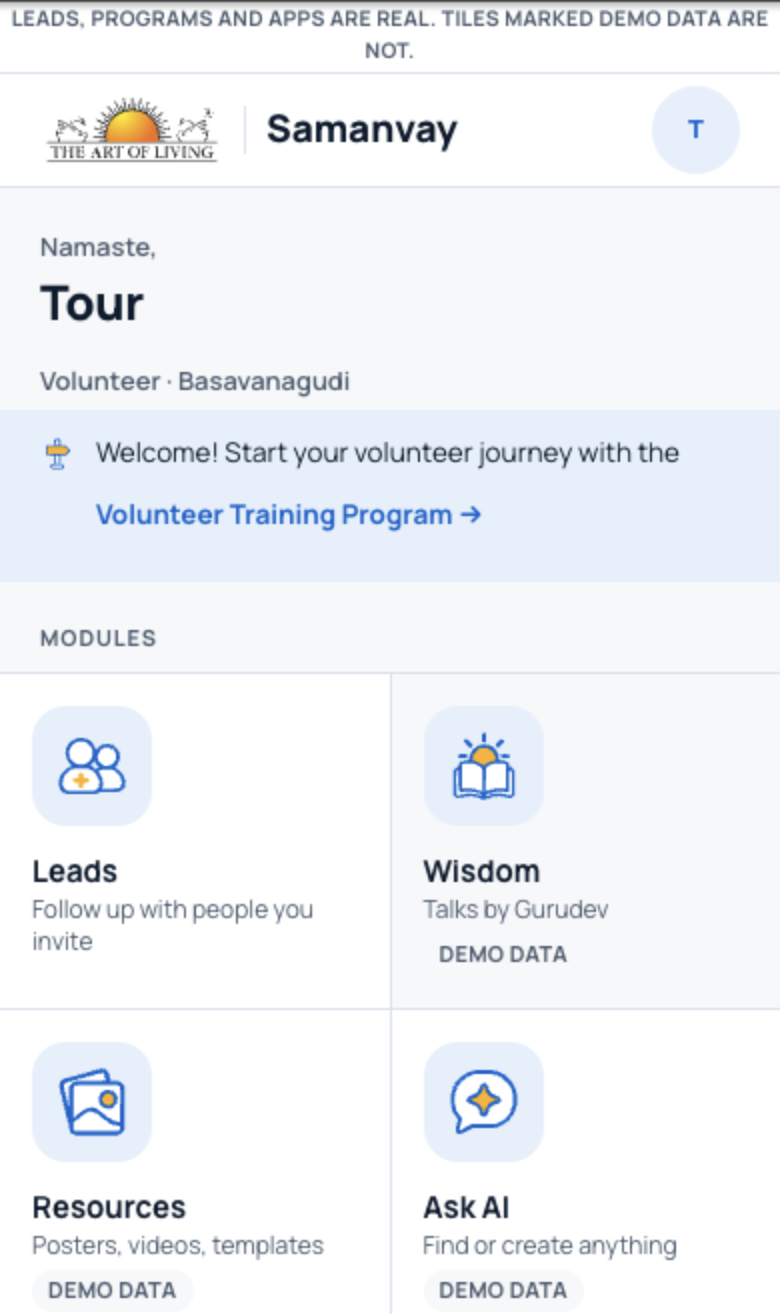
Each tile on Home opens one app. You see only the apps your role may use.
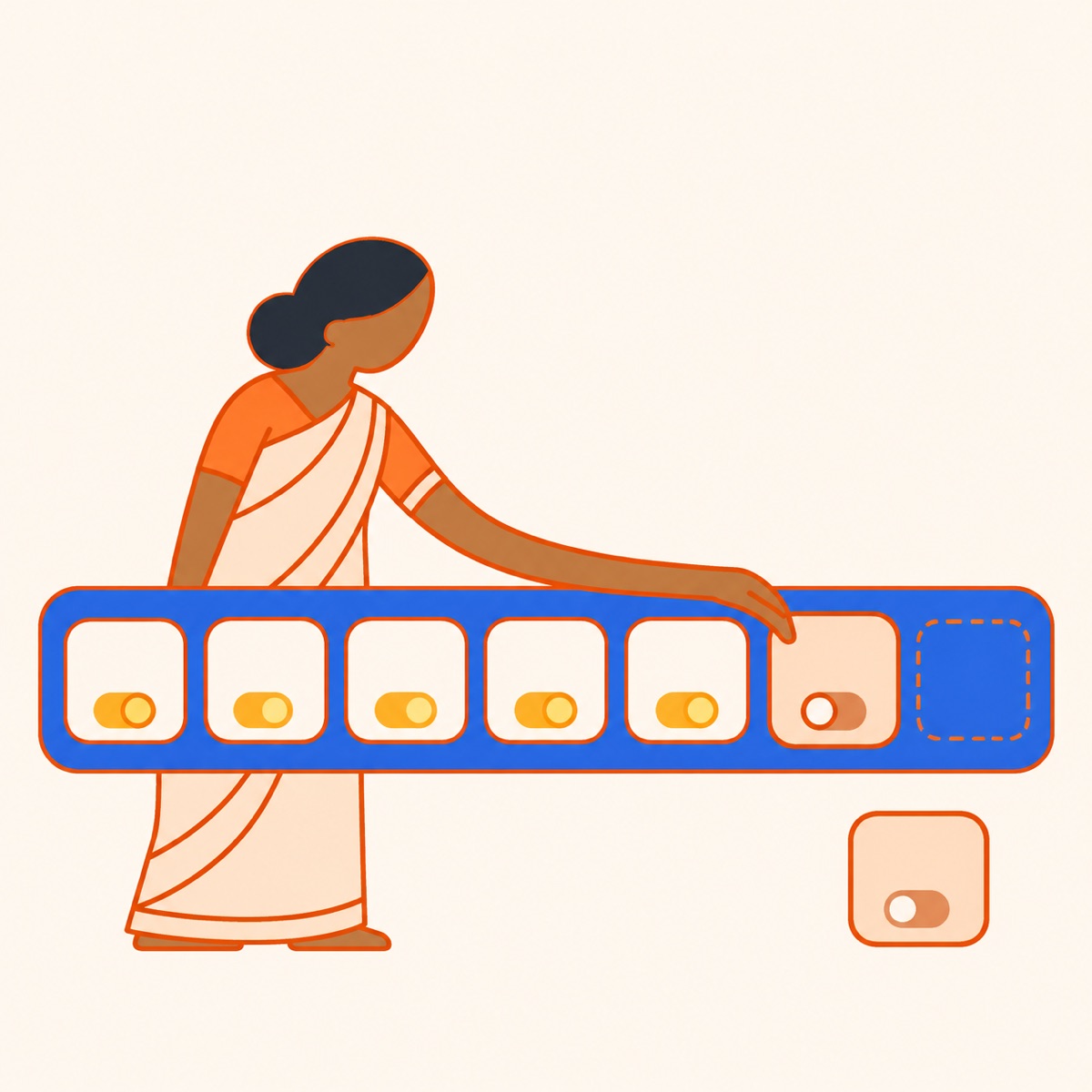
An org admin can turn any app off. Go to Home > Turn apps on or off. The tile hides at once. No rebuild.
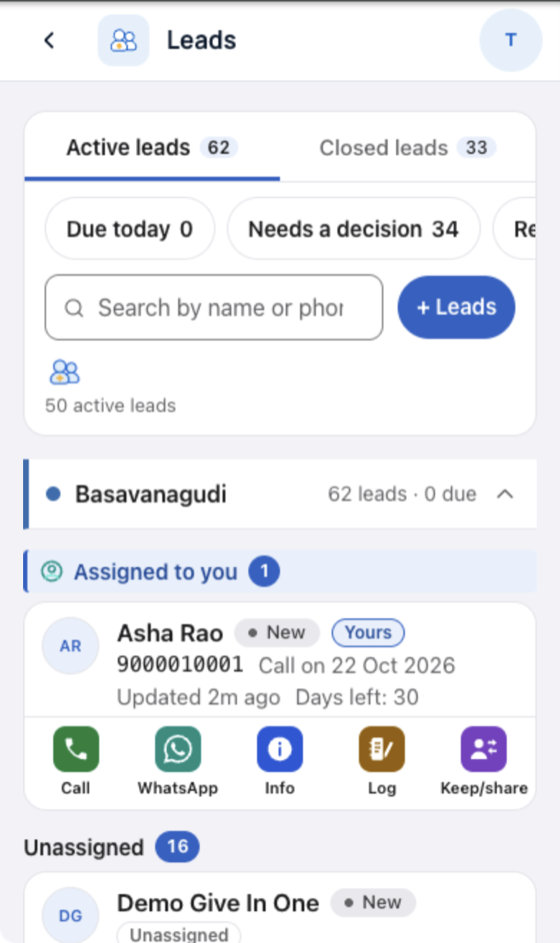
Follow up with people you invited. Call or WhatsApp in one tap.
TryOne lead per phoneDo not contact needs a reasonUndo the last stepClosed list with reason
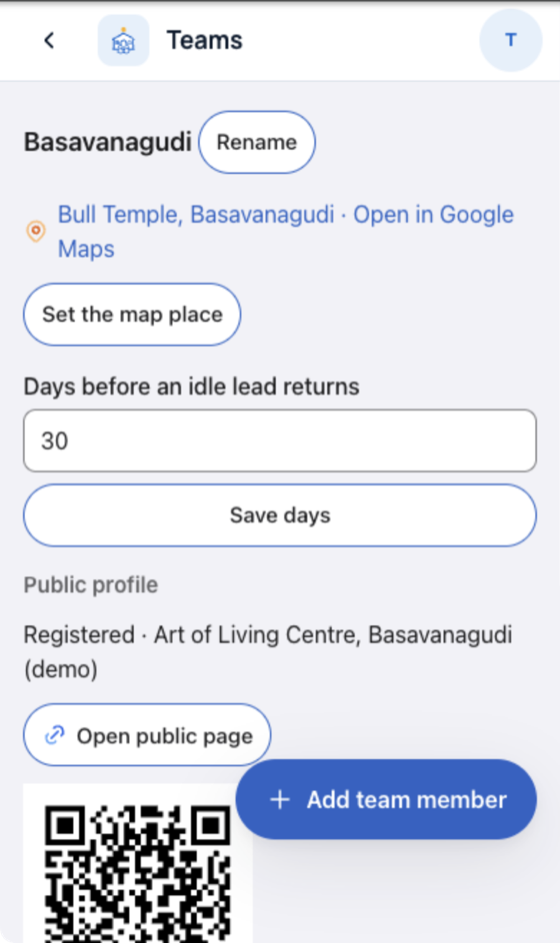
Your centre and its team. Invite people. Set the centre's place on the map.
Try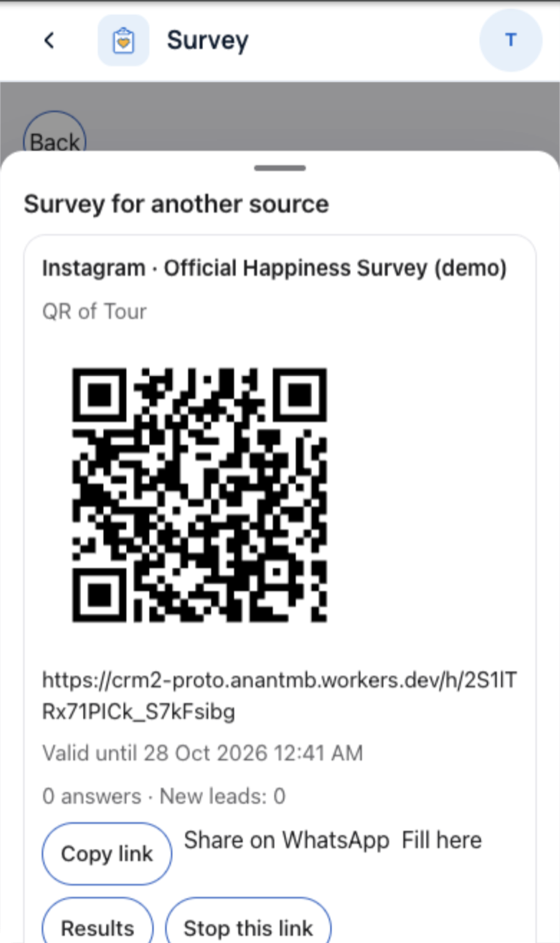
The Happiness Survey. Each teacher makes their own QR link.
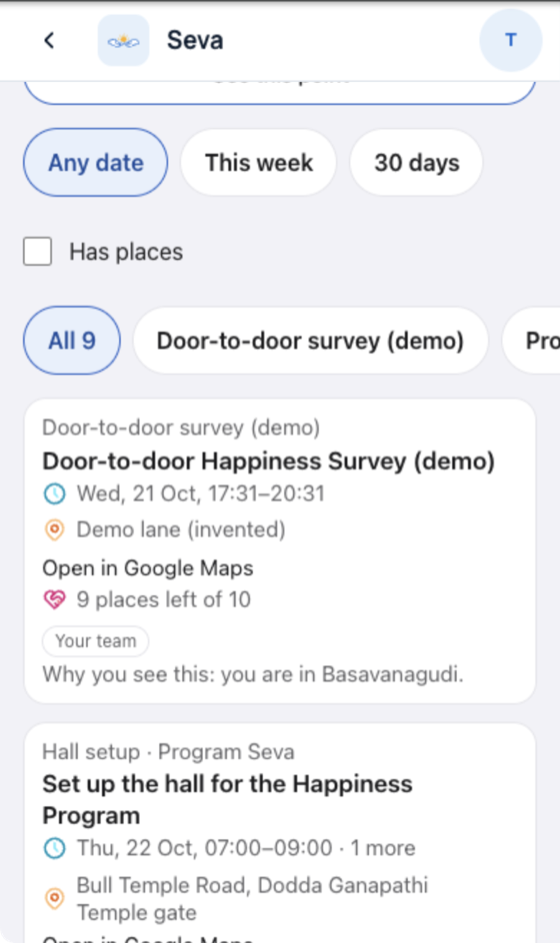
Seva you can join near you. Sign up, check in, log hours.
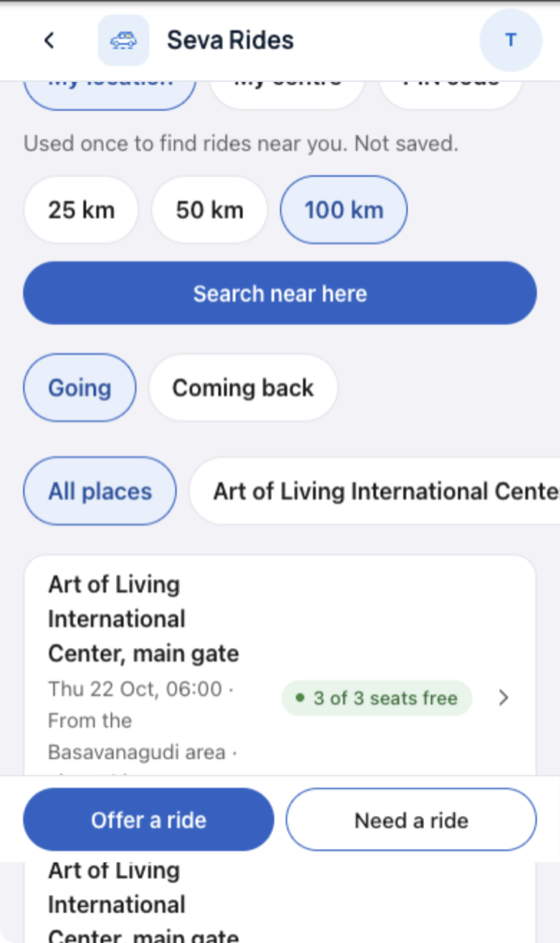
Shared rides to programs and seva.
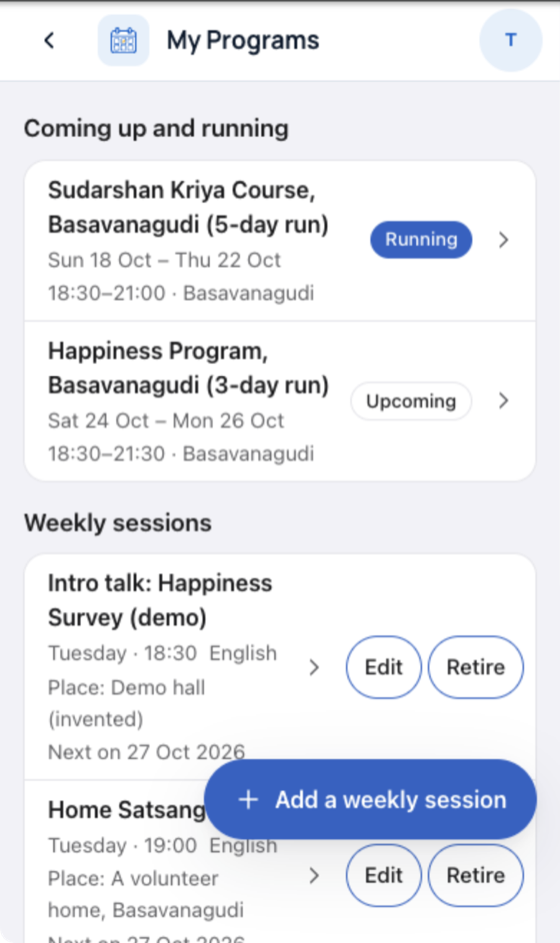
Programs you run or attend.
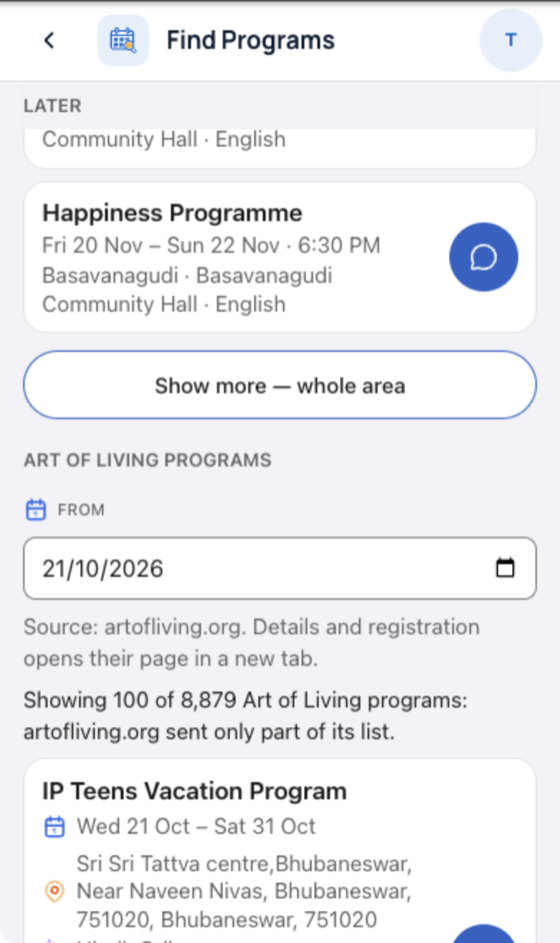
The Art of Living program catalog.
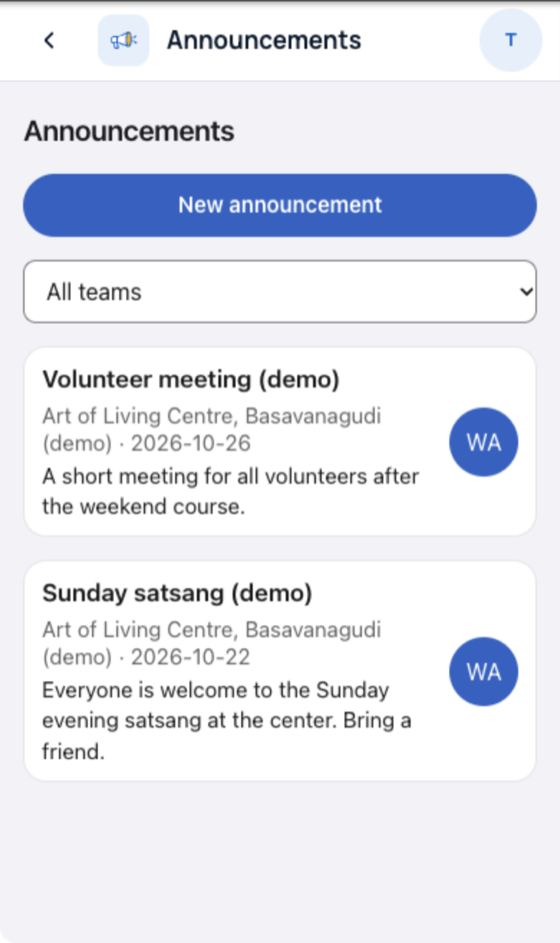
Notices from registered centres. Filter by centre.
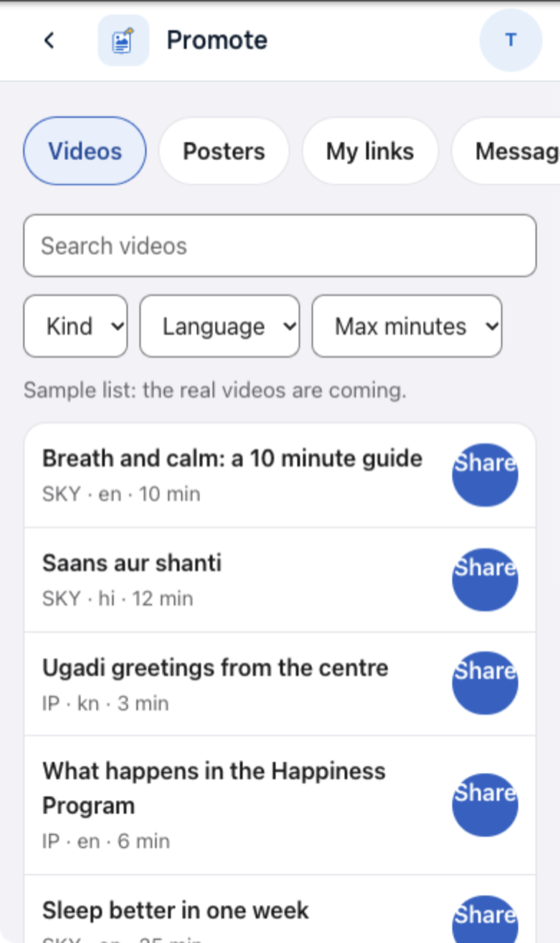
Videos, posters, your program links and ready messages.
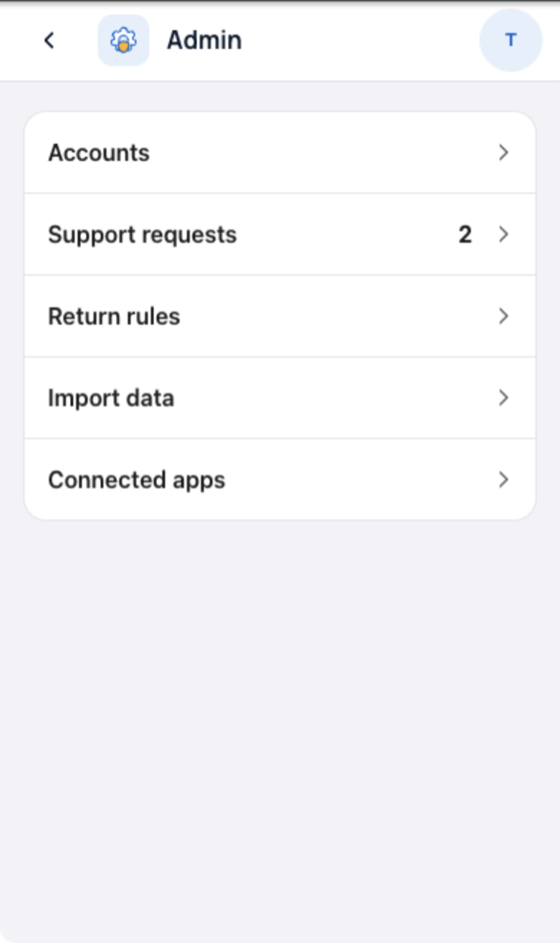
Accounts, support requests, return rules, data import, connected apps.
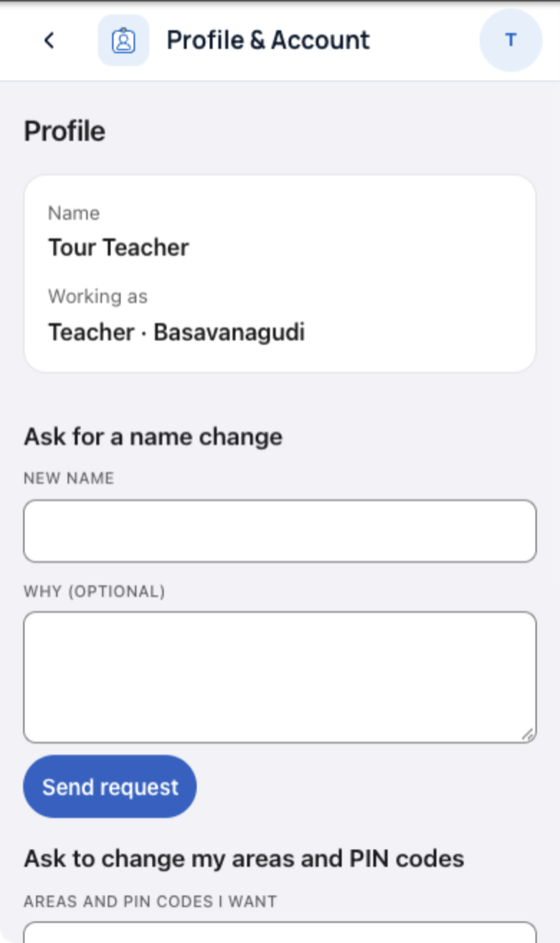
Your details and your language.
These tiles show demo data in this demo.
Wisdom · talks by GurudevResources · posters, videos, templatesAsk AI · find or create anythingVTP · Volunteer Training ProgramCentres · find a centreEvents · events and sign-up
| Item | Before | After | Why |
|---|---|---|---|
| App list | The tile list was fixed in code. | Home reads the list at sign-in. | A team adds an app with one row in its own list. One id row in the shell, which a check keeps equal. |
| On/off switch | Every person saw every tile. | Each app has a permission and a switch. | An admin hides an unready app in one tap. |
| Top bar and app frame | CRM2 modules shared one header. AOL was a separate site with its own bar. | AOL apps open under the same top bar. Their own bar is hidden. | Every app looks like one product. App teams build no header. |
| One web address | The shell talked to CRM2's own backend only. | Added apps run under the same address. | One sign-in, one cookie, no cross-site setup. |
| Icons and languages | Generic icons. English and Hindi. | Sunburst icons. Six languages in the Samanvay build: English, Hindi, Marathi, Telugu, Gujarati, Kannada. | One look, and the languages volunteers speak. The last four are drafts. |
| Speed | Sign-in 1.12 s. Open Leads 1.88 s. | Sign-in 0.57 s. Open Leads 0.97 s. | A tile tap no longer reloads the whole page. |
Speed: median of 3 runs, desktop browser at phone size. Phones were not measured. Timed on the 20 Oct builds; the current build is not re-timed.
Part 1: the Samanvay shell. Part 2 (AOL split) follows.
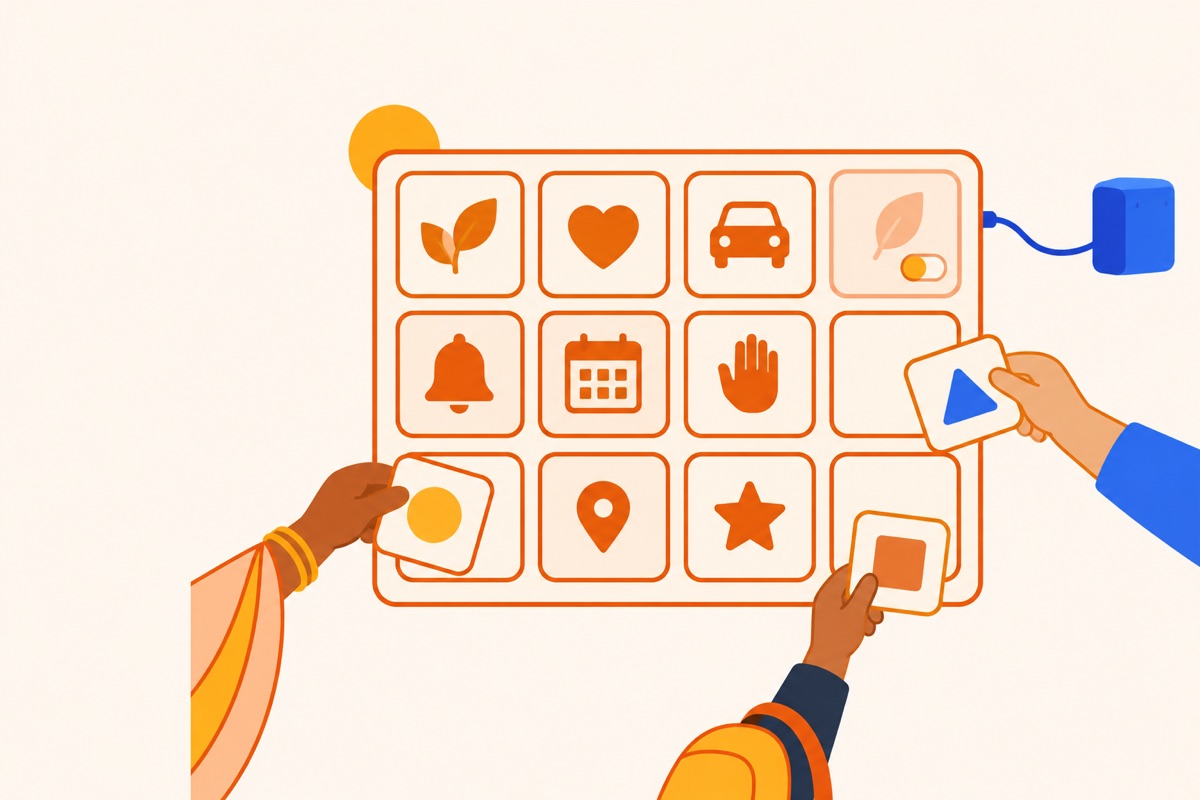 RegistrySwitchDoorOne frame
The core becomes a plug-in board


Dev: 8 edits · native tile: 10+ stepsWithout: Every tile ships shell
Row carries permission and switch
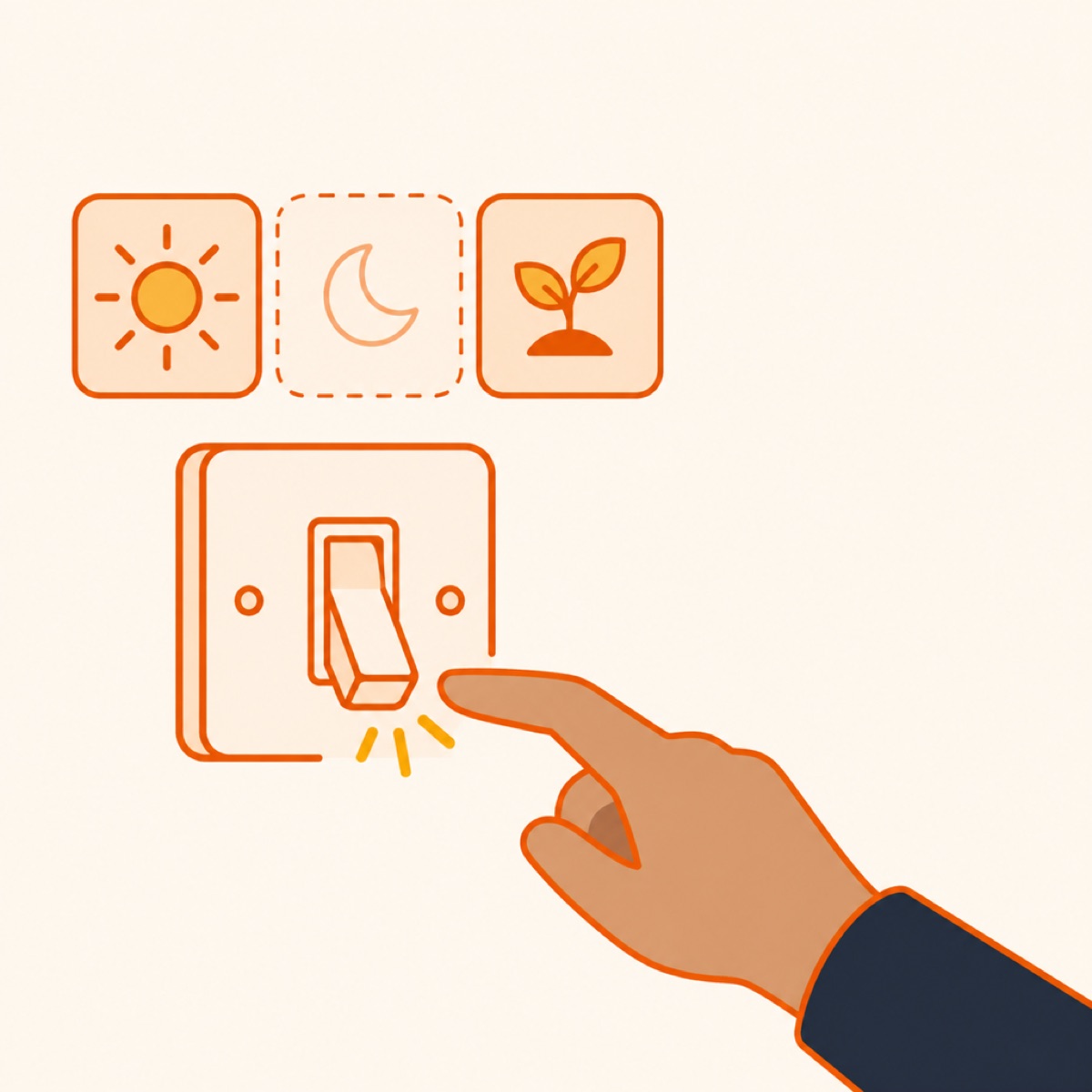

Deploys 1 → 0Without: Faulty app stays on
Bad app off in one tap

5 files ≈+270Without: Only developers switch
Org admins switch tiles
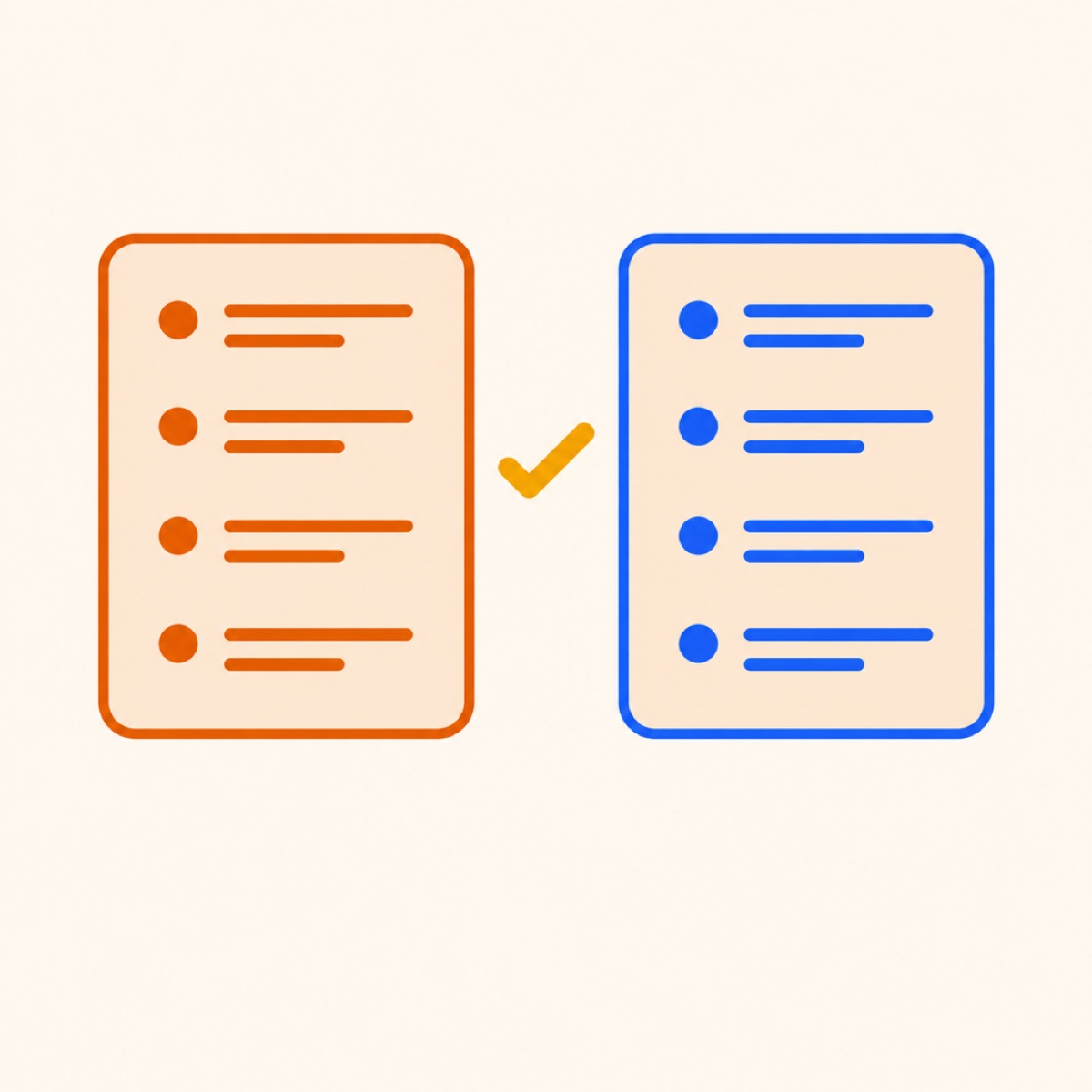

Shell classifier removed · drift caught by checkWithout: Two lists drift
Shell keeps app lists; check pins ids and paths


AOL apps under the shell barWithout: AOL stays a separate site
AOL's own chrome stays hidden


Sign-ins: 1 (AOL's session, first-party)Without: Separate AOL site
One origin, one session


Sign-in 1123 → 572 ms · desktop, before one-frameWithout: ≈2 s every tap
Deploy-1022 one-frame state was not timed


4 files ≈+150Without: Notices go unseen
Notice seen from Home


Locales 2 → 6 · AOL shell buildOther builds: en + hi
Six locales in the AOL shell build

17 chunks checkedWithout: Breaks found on phones
Breaks caught before team release

26 files +84/−69Without: Brand forced on team
Brand change can be refused alone
≈ marks an estimate. Speed figures are desktop measurements from before the one-frame change; deploy-1022 was not timed. Phones were not measured.
Part 2. Part 1 is the CRM2 shell above. The real cut is AOL-Connect-app 6cef4b9a (#398), at integration tip 0469eda3: 1,724 files, +275,681 lines vs dev f27a587e. Fair-run rows remain 55df3634 vs afcf4e05; add/remove recipe data remain from the prior #397 run, comparing 55df3634 with b48d7e60.
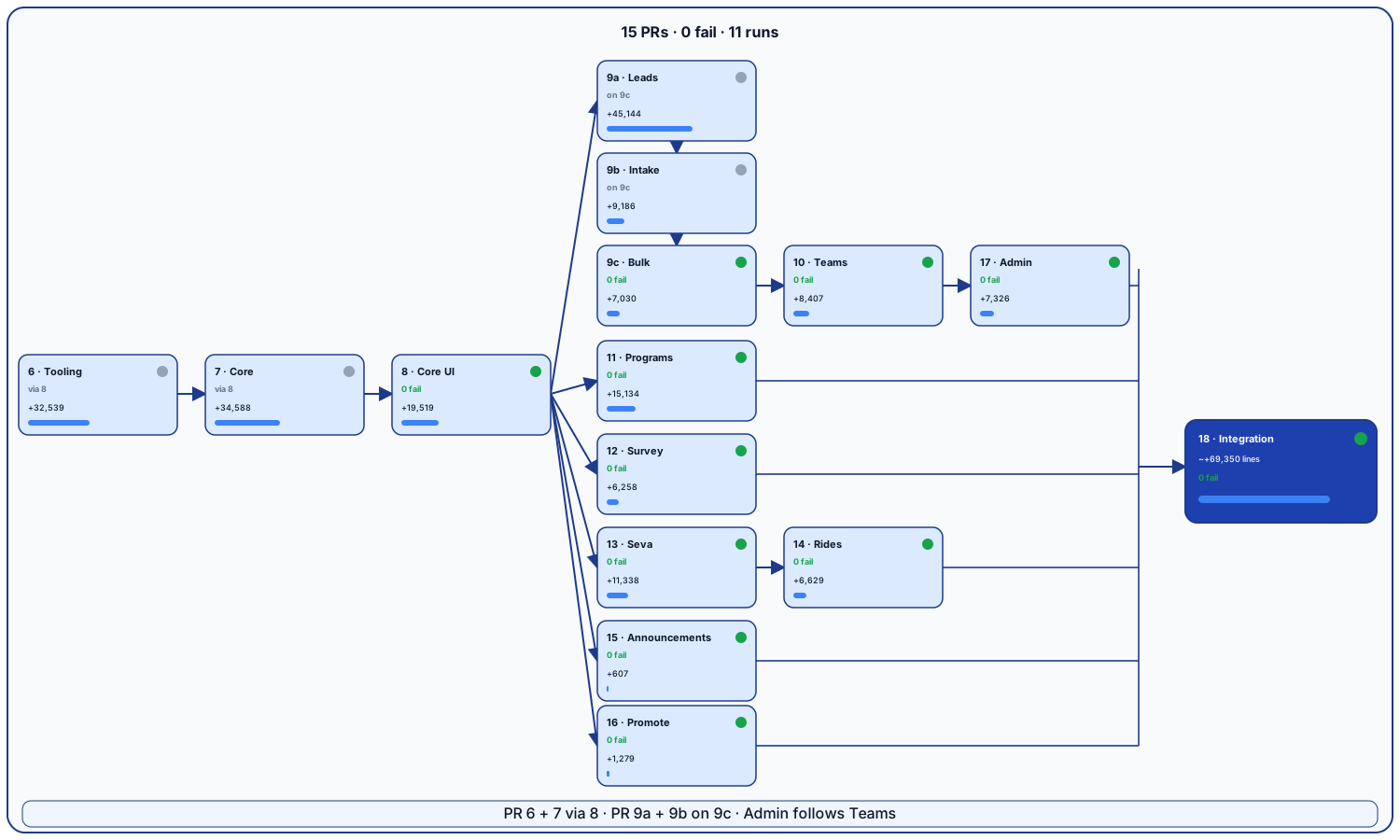
Capability focus: core tooling → core → core UI → Leads → Leads intake → Leads bulk → Teams.
Merge order follows the cut parent chain: core tooling → core → core UI → Leads → Leads intake → Leads bulk → Teams.
Then the independent app branches on core UI, in any order; Rides after Seva; Admin after Teams; integration last.
 CoreApps plug inBranches by appSwitch off
One core, apps plug in
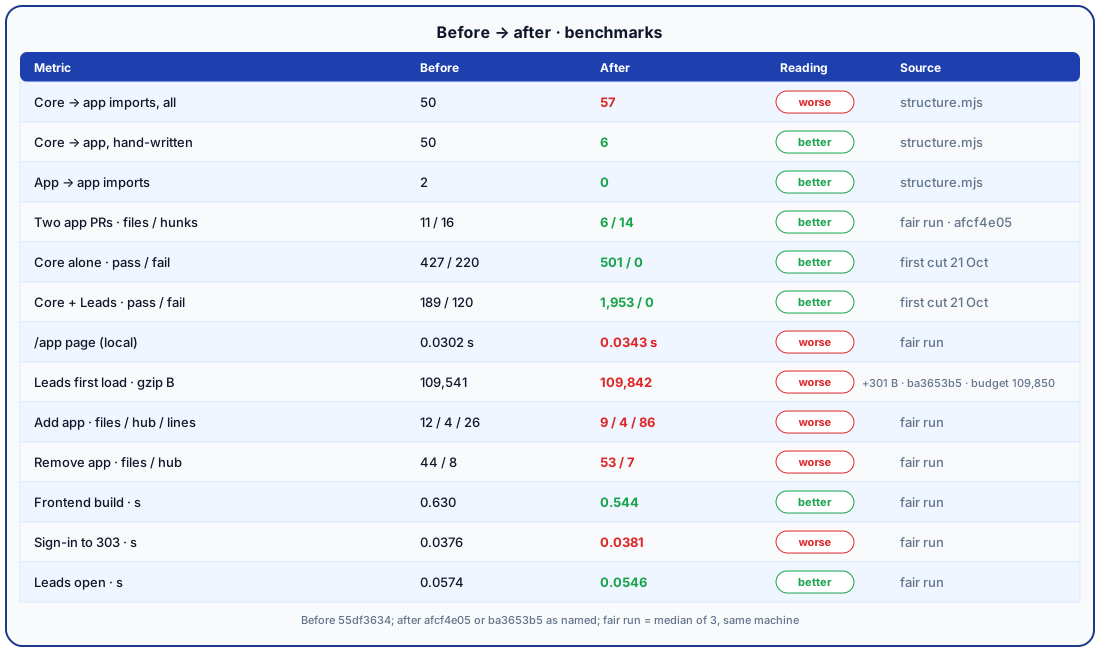
Honest rows: total core → app imports rise (50 → 57), Leads first load is 301 B larger, and /app is 4.1 ms slower in the fair run. The add/remove recipe counts below use 55df3634 vs b48d7e60. The gain is where the links sit and who can switch an app off. Removing an app touches more files (44 → 85: the Rides tests, pages and flows now move with it; core 8 → 5, reviewer 44 → 5).
Since #394, the generated lists merge with 0 conflicts (ba3653b5).
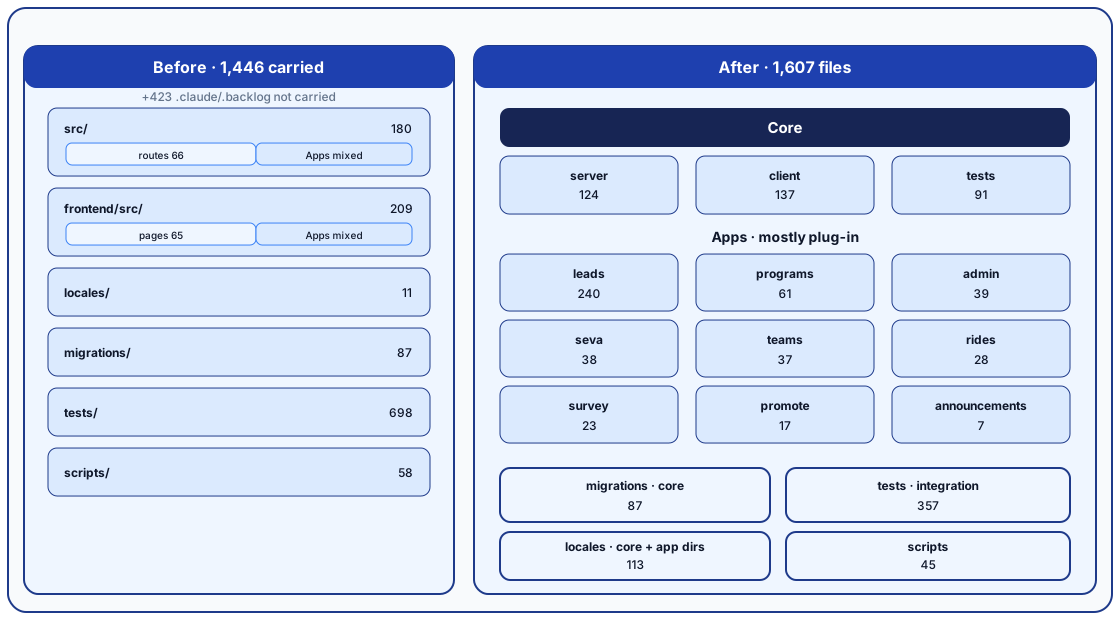
1,724 files · +275,681 lines vs devWithout: Apps mixed in src/ and frontend/src/
Apps move out; core keeps listed leftovers
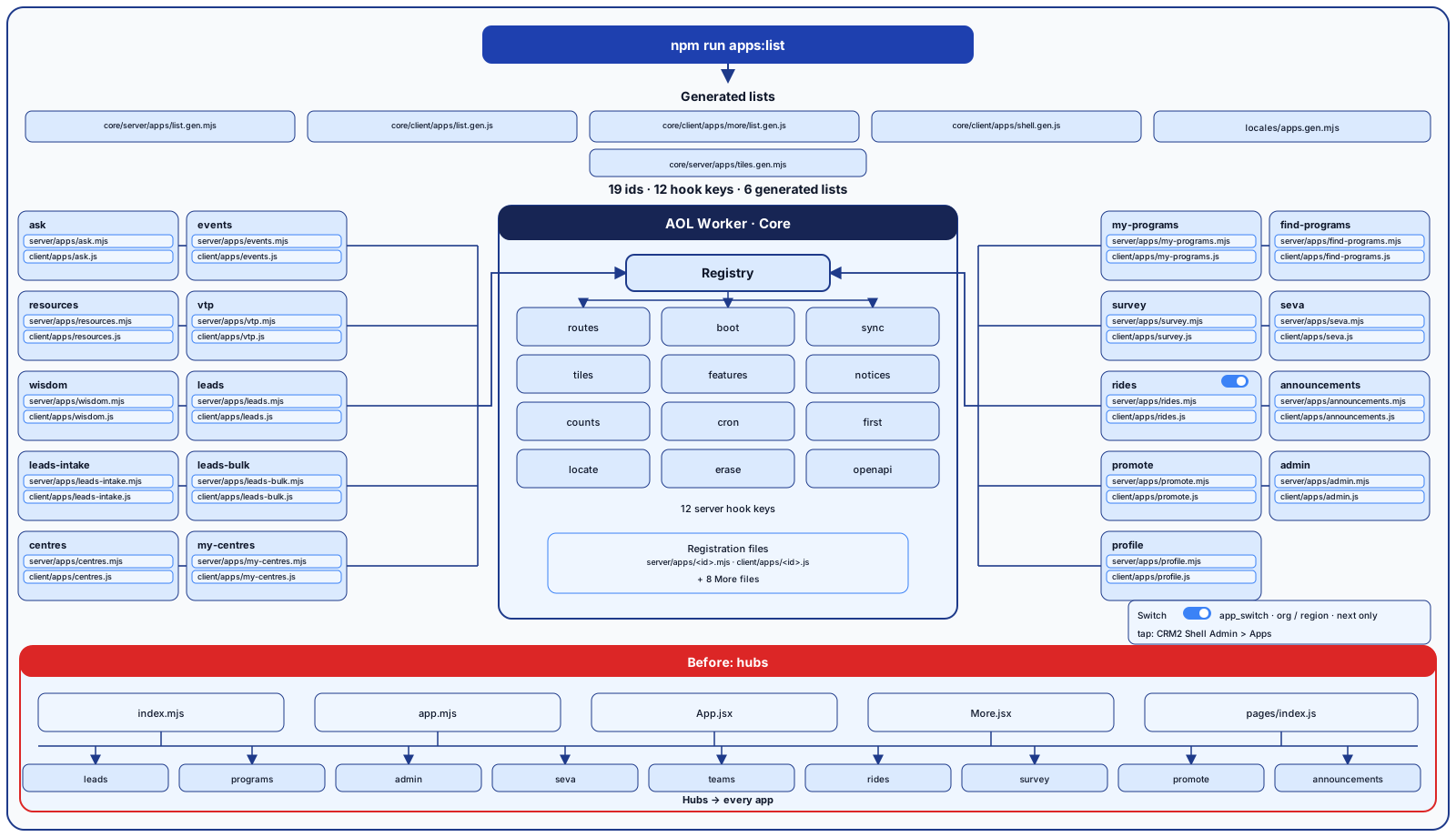
19 ids · 12 hook keys · 6 generated listsWithout: Hubs import every app
Apps plug into twelve hook keys
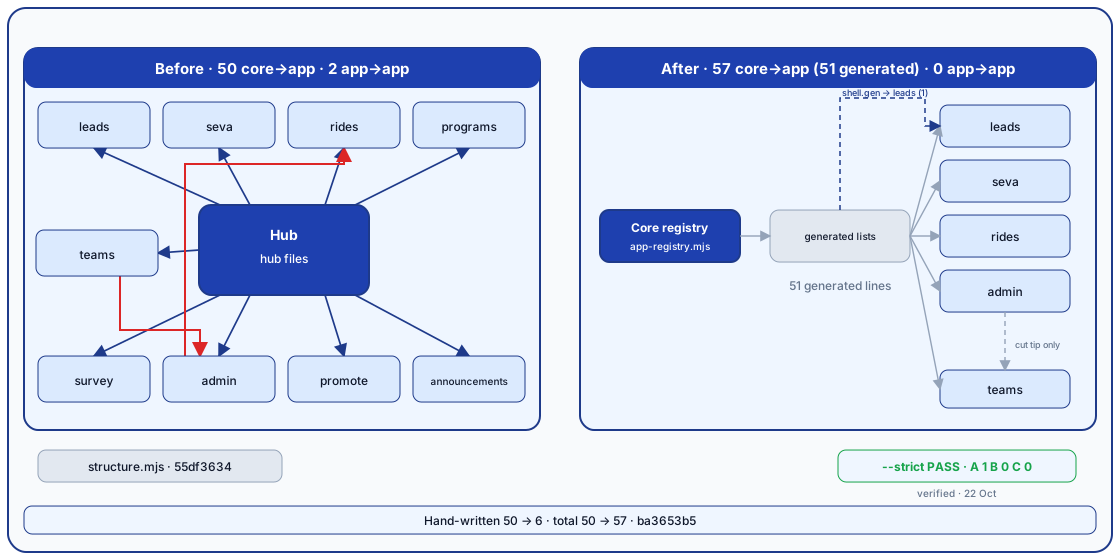
Hand-written hub imports 50 → 6 · app → app 2 → 0Without: Worse: total core → app 50 → 57 (generated lists)
Core imports no app by hand
| Path | Owner (proposed) |
|---|---|
core/, migrations, scripts, tests | aol-core |
| apps/leads | aol-leads |
| apps/teams | aol-teams |
| apps/programs | aol-programs |
| apps/survey | aol-survey |
| apps/seva, apps/rides | aol-seva |
| apps/announcements, apps/promote | aol-comms |
| apps/admin | aol-core |
Each folder has one ownerWithout: all code in one review lane
Owner names are proposed; no CODEOWNERS file in the cut. The boundary check fails a new cross-app import.
Build, seeds, test data, boundary check and CI
Core UI chain: 466 pass / 0 fail
split/chore/aol-core-tooling · base dev · tip 788f5044
75 files · +31,836 lines
Without: No app builds or boundary check
Read first: package.json, then ci.yml
Sign-in, roles, people, lead store and migrations
Core UI chain: 466 pass / 0 fail
split/feat/aol-core · base tooling · tip 97826a61
296 files · +32,970 lines
Without: Nothing runs
Read first: core/server/app-registry.mjs
Screens kit, router, registry and shell door
Alone: 466 pass / 0 fail
split/feat/aol-core-ui · base core · tip 257536e1
255 files · +18,788 lines
Without: No shared app screens or routes
Read first: the two registry readers
Lead list, detail and add
147 fail alone · Leads chain: 1,931 pass / 0 fail
split/feat/app-leads · base core-ui · tip 46496ee3
237 files · +46,935 lines
Read first: the two registration files, then routes
Without: No Leads tile
Intake from forms and ads
147 fail alone · Leads chain: 1,931 pass / 0 fail
split/feat/app-leads-intake · base leads · tip 0ff23c23
36 files · +9,186 lines
Read first: server/apps/leads-intake.mjs
Without: No intake or ads screens
Import, export, refer and offline book
Alone: 1,931 pass / 0 fail
split/feat/app-leads-bulk · base leads-intake · tip 3bb89464
23 files · +7,121 lines
Read first: server/apps/leads-bulk.mjs
Without: No CSV import or referrals
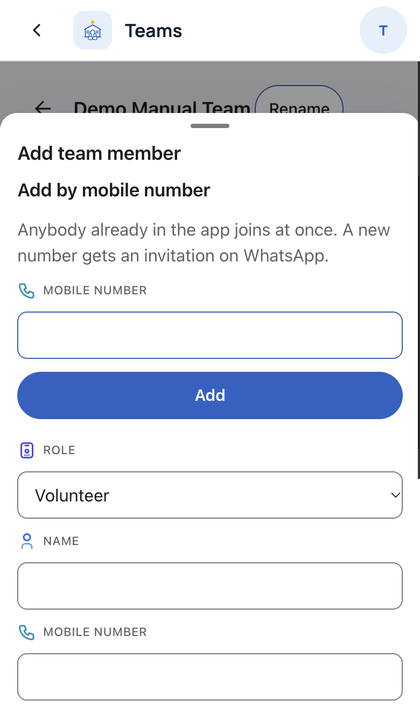
Team admins and add members by mobile
Alone: 2,064 pass / 0 fail
split/feat/app-teams · base leads-bulk · tip 29676167
70 files · +9,403 lines
Without: No Teams tile
Read first: server/apps/my-centres.mjs
Staff hub and own profile
Alone: 2,114 pass / 0 fail
split/feat/app-admin-profile · base teams · tip 648cdb30
73 files · +8,087 lines
Read first: both registrations; the declared link
Without: No Admin hub or profile page
My and Find Programs
Alone: 697 pass / 0 fail
split/feat/app-programs · base core-ui · tip 3e5ce662
95 files · +17,697 lines
Read first: both registrations, then apps/programs/routes/events.mjs
Without: No programme pages
Happiness Survey and form builder
Alone: 505 pass / 0 fail
split/feat/app-survey · base core-ui · tip 561a39ef
67 files · +7,911 lines
Read first: server/apps/survey.mjs
Without: No Survey tile
Callouts, shifts, roster and safety
Alone: 570 pass / 0 fail
split/feat/app-seva · base core-ui · tip 9e8b24a2
103 files · +14,391 lines
Read first: server/apps/seva.mjs (hooks)
Without: No Seva tile; Rides cannot land
Ride offers, needs and notices
Alone: 619 pass / 0 fail
split/feat/app-seva-rides · base seva · tip 25af1d72
78 files · +8,735 lines
Read first: server/apps/rides.mjs (cron, notices)
Without: No Rides tile
Announcements tile
Alone: 479 pass / 0 fail
split/feat/app-announcements · base core-ui · tip af03eea4
36 files · +897 lines
Read first: all app files; the template for a new app
Without: No Announcements tile
Videos, posters, links and messages
Alone: 485 pass / 0 fail
split/feat/app-promote · base core-ui · tip f0eac184
48 files · +1,877 lines
Read first: server/apps/promote.mjs
Without: No Promote tile
Tip equals the whole moved tree
Alone: 4,356 pass / 0 fail
split/test/aol-integration · base dev + 6 leaf tips · tip 0469eda3
1,724 files · +275,681 lines
Without: No proof the apps work together
Read first: test names only
Alone counts and sizes use branch-status.md, table “real cut 6cef4b9a”. Leads and Leads-intake each fail 147 tests alone because client-hook tests need Leads bulk; the full Leads chain passes 1,931 / 0.
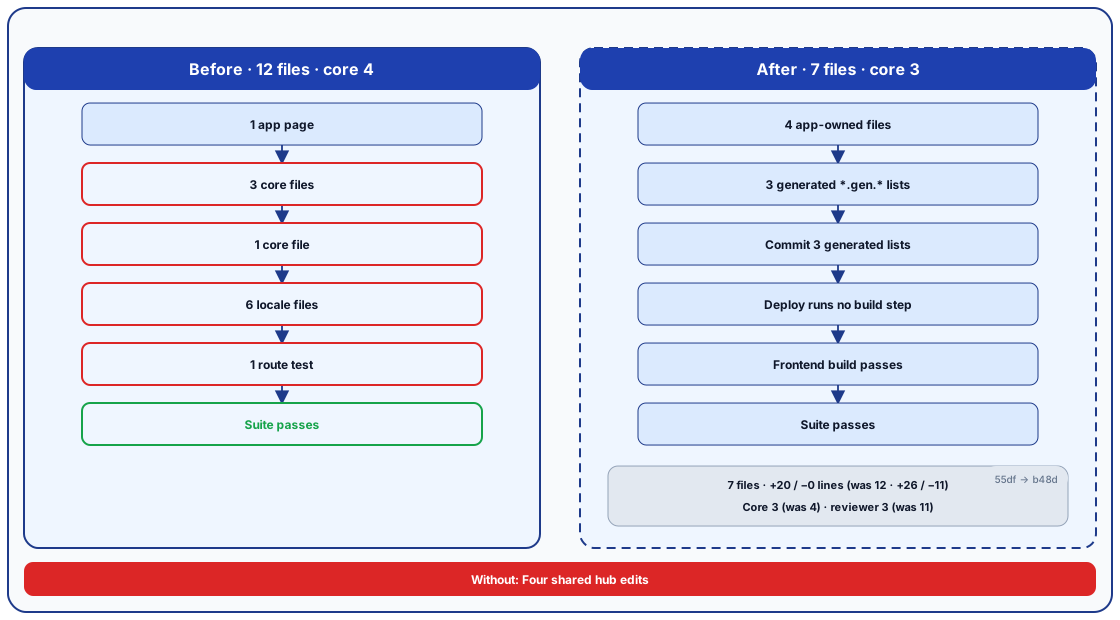
12 → 7 files · core 4 → 3 · reviewer 11 → 3+26/−11 → +20/−0 lines · build and suite pass
4 app files; 3 generated lists stay committed
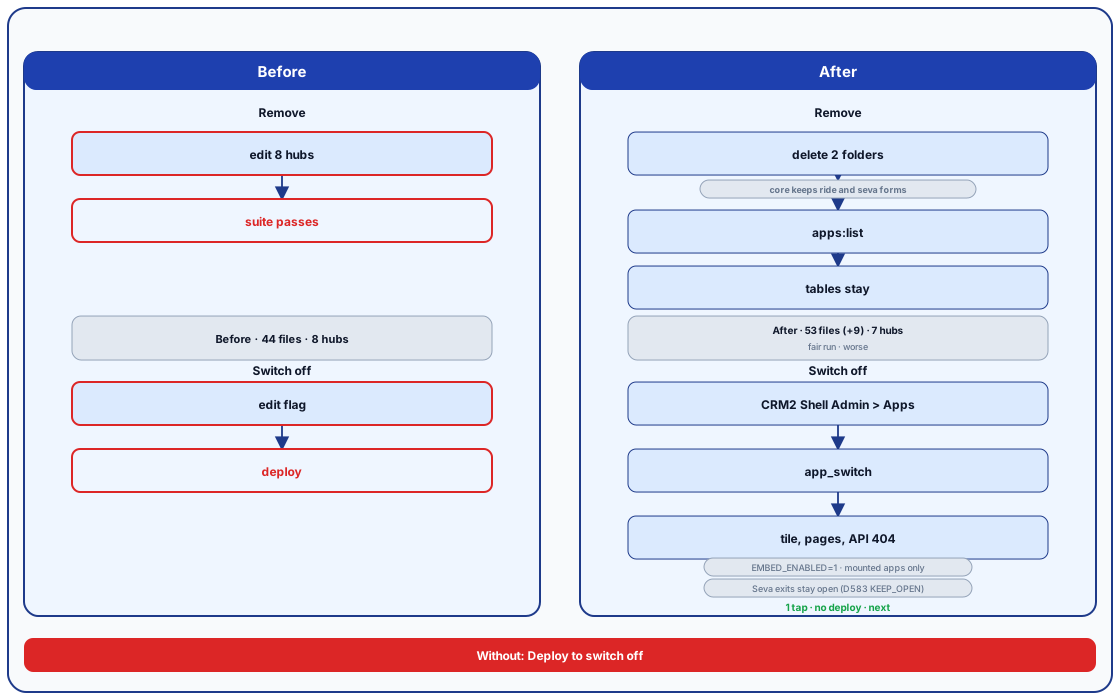
Core 8 → 5 · reviewer 44 → 544 → 85 files · +61/−4,062 → +0/−10,505 lines · build and suite pass
The Rides and locales/rides folders hold all its code, tests, pages, flows and words; deleting them removes all.
Off in one tap, no deploy
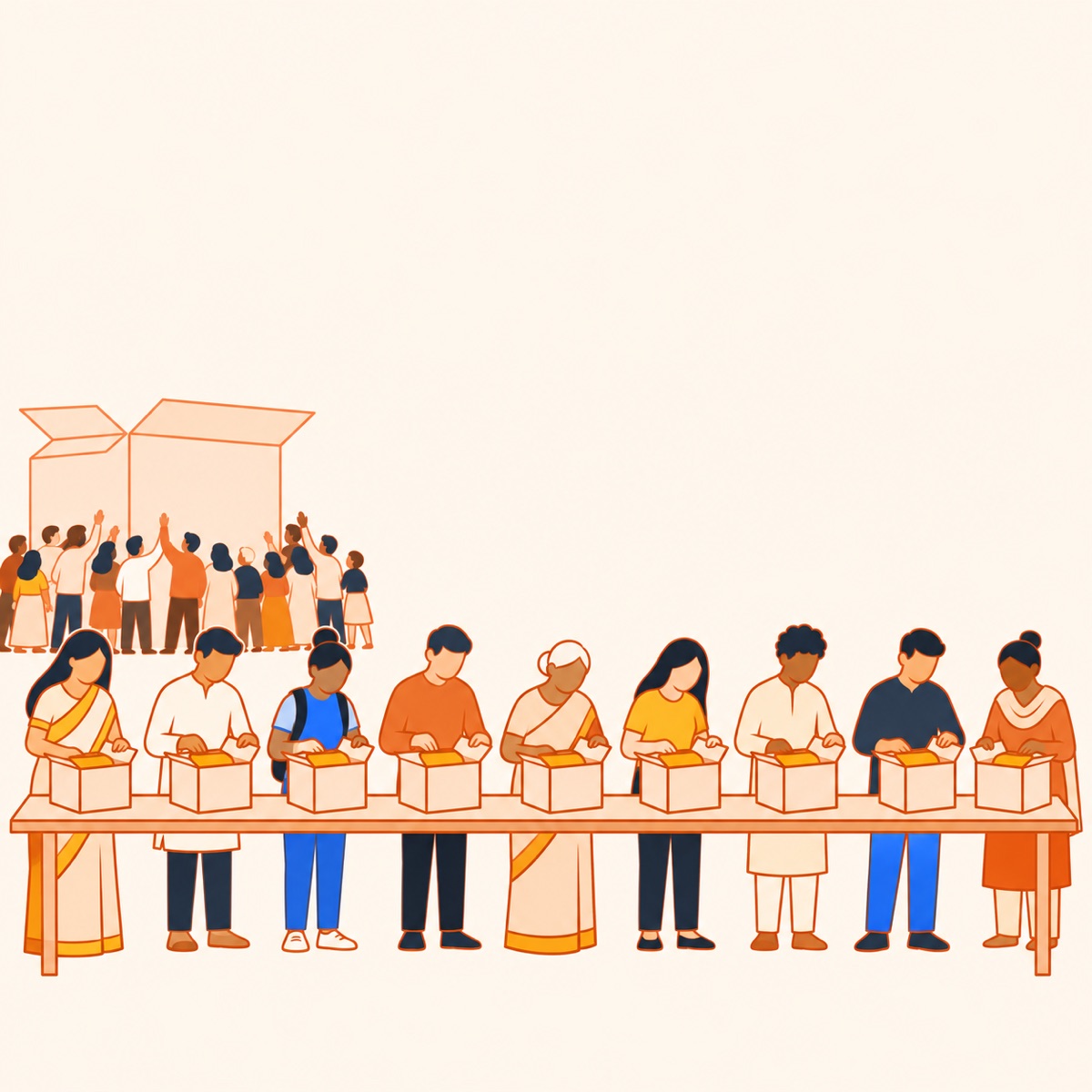
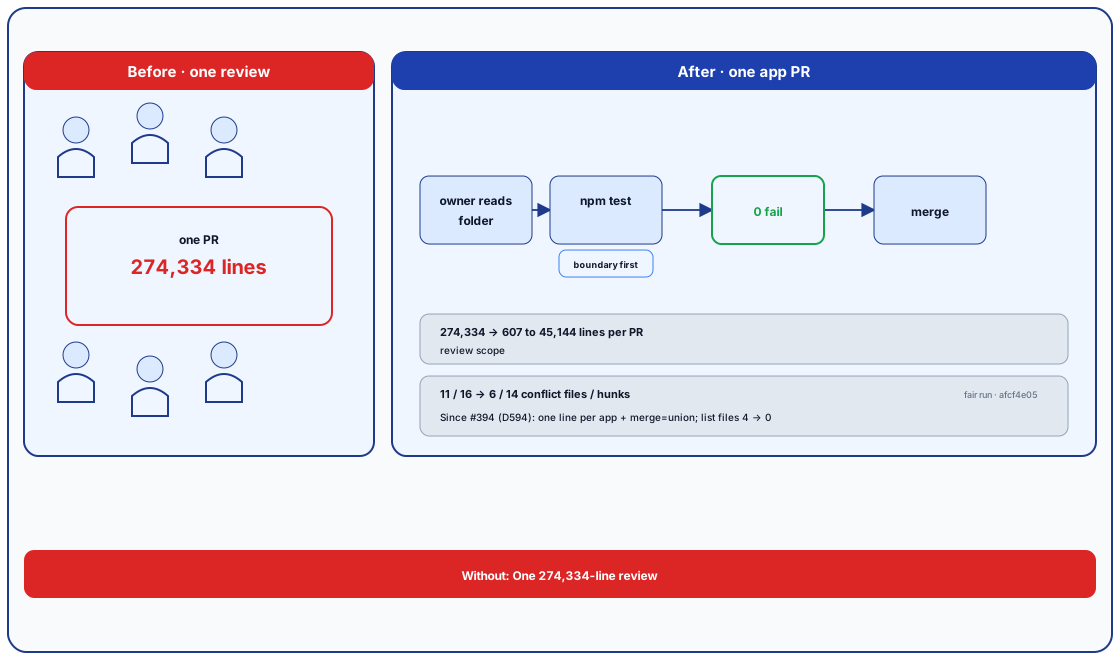
Conflicts 11/16 → 6/14 (fair run)Without: One +275,681-line review
Each team reviews its folder only
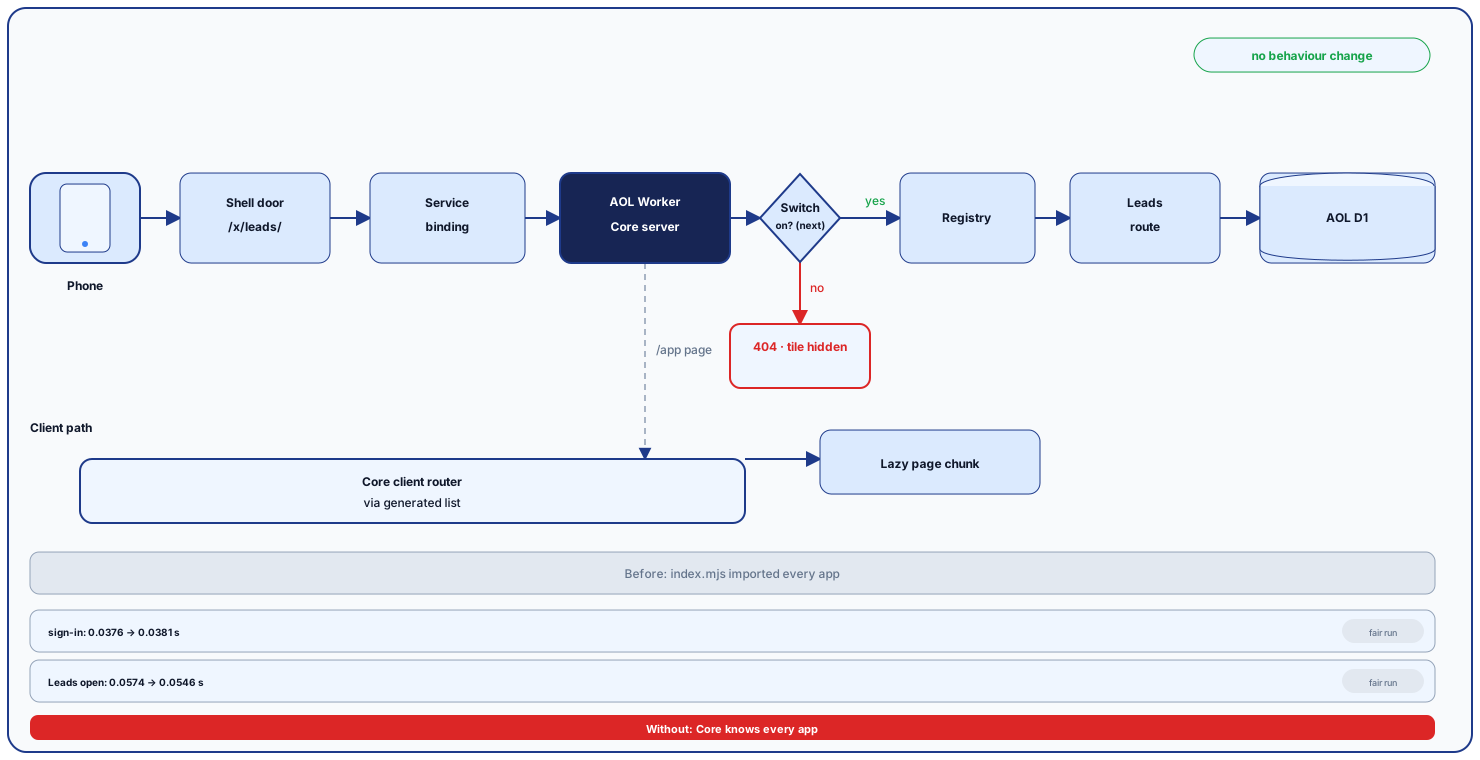
No behaviour change · Leads open 0.0574 → 0.0546 sWithout: Core knows every app
Same tap, registry finds the app
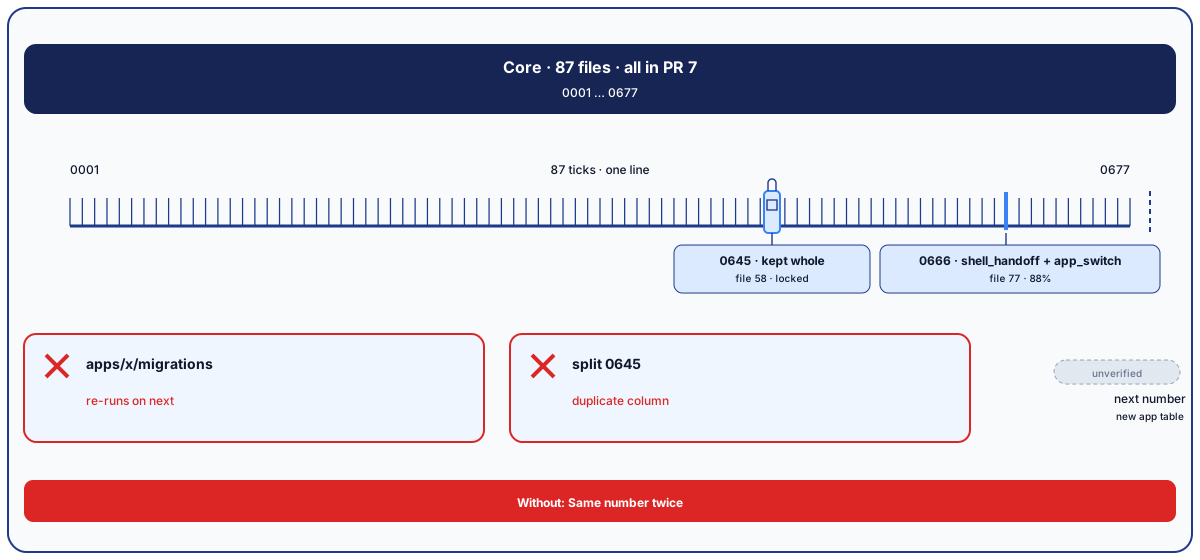
One ordered line, held by coreWithout: Two apps pick the same number
All migrations stay in the core branch
| Metric | Before | After | Why |
|---|---|---|---|
| Core → app imports, all | 50 | 57 | Generated lists name each app (51 of 57). Hand-written: 50 → 6 (afcf4e05 → ba3653b5). |
| Add demo-x: files / core / reviewer | 12 / 4 / 11 | 7 / 3 / 3 | Lines +26/−11 → +20/−0; build and suite pass. 55df3634 → b48d7e60. |
| Remove Seva Rides: files / core / reviewer | 44 / 8 / 44 | 85 / 5 / 5 | Lines +61/−4,062 → +0/−10,505; build and suite pass. The Rides and locales/rides folders hold all its code, tests, pages, flows and words; deleting them removes all. |
| Leads first load (gzip B) | 109,541 | 109,842 | 55df3634 → ba3653b5; +301 B, inside the 109,850 B budget. |
| /app page (local) | 0.0302 s | 0.0343 s | +4.1 ms; no cause isolated. |
| Sign-in to 303 (local) | 0.0376 s | 0.0381 s | +0.5 ms; no cause isolated. Leads open is faster: 0.0574 → 0.0546 s. |
Not measured: per-app test time (run only one app's tests). Fair-run rows (build, sign-in, Leads open, /app page) are 55df3634 vs afcf4e05, median of 3, same machine; they were not re-run on ba3653b5. Fair-run conflicts: 11/16 → 6/14 (55df3634 vs afcf4e05). Add/remove compare 55df3634 with b48d7e60 after PRs #395–#397. Local timings are local measurements, not phone times. Since #398, the core-name guard (tests/core-names-no-app.test.mjs) covers every registered app (19); each allow-listed core word has a written reason. By rule, the /health schema probes name Seva, Survey, Announcements and Rides. Core still deliberately names Leads and Programs for the lead store. The 10 Seva forms moved from frontend/src/forms into apps/seva. The changed core and reviewer files are committed generated lists (*.gen.*) because deploys run no build step.
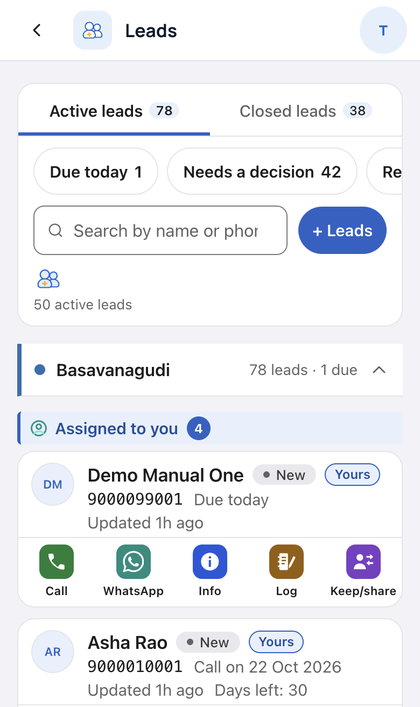
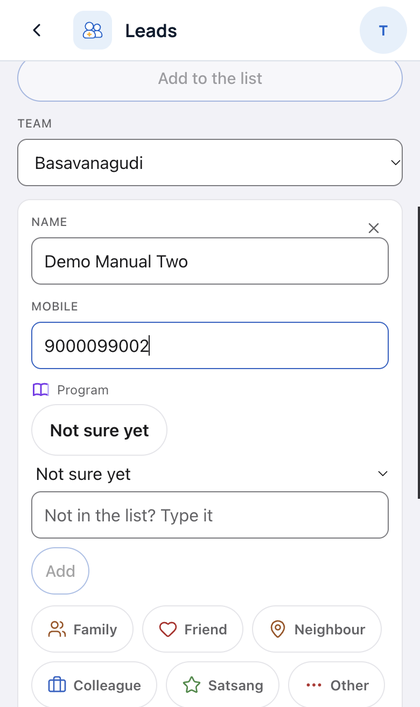
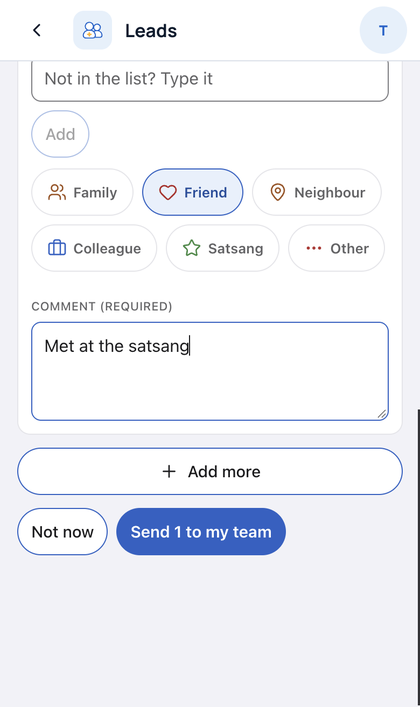
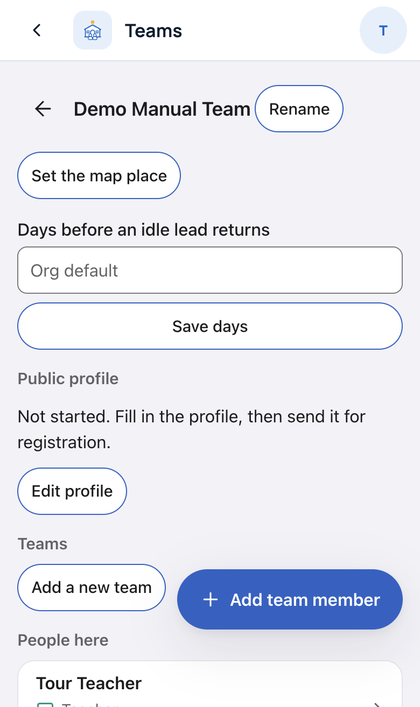
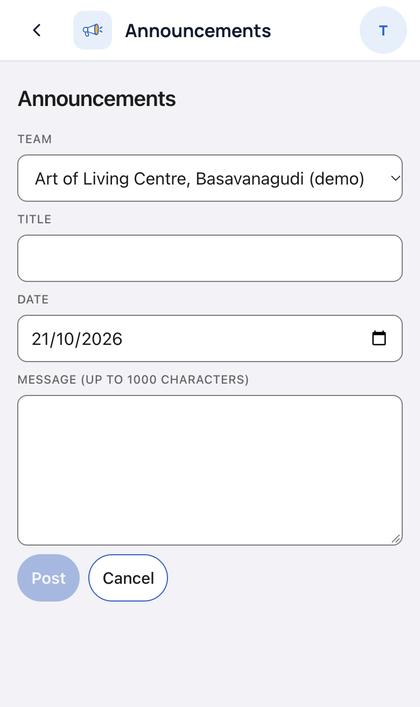
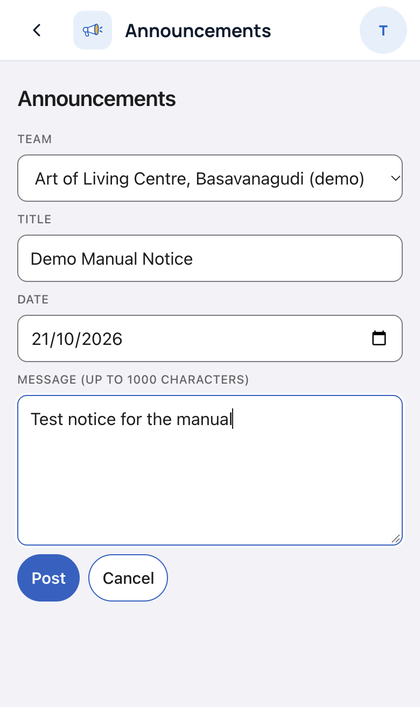
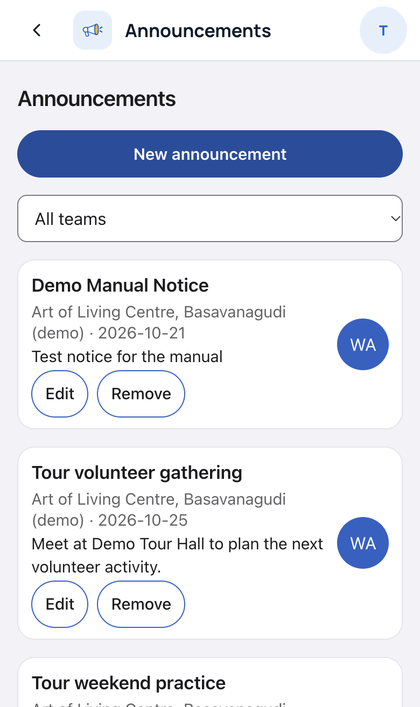
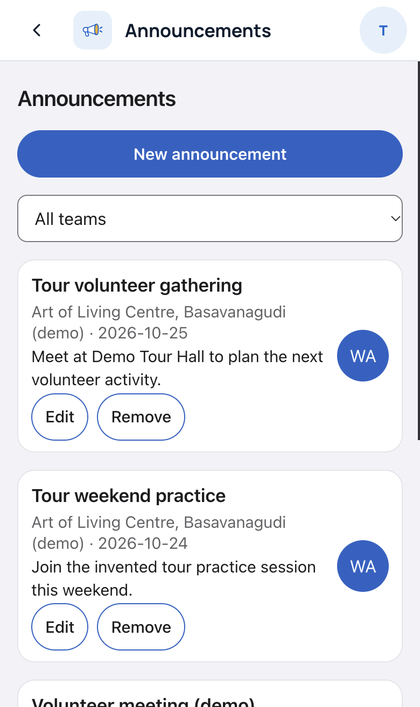
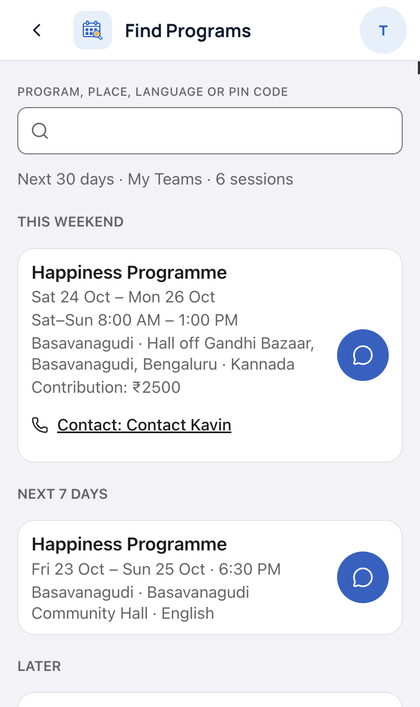
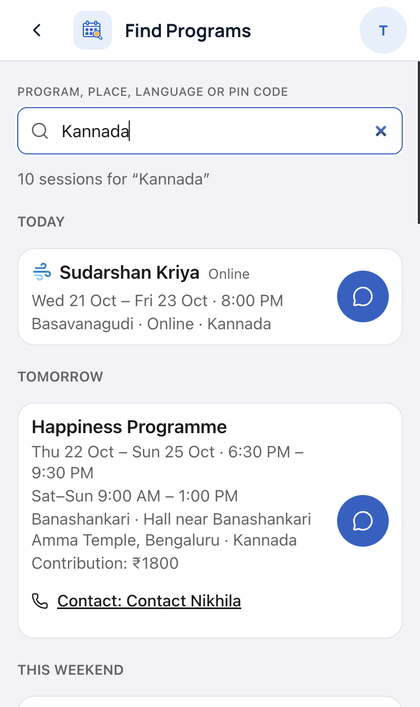
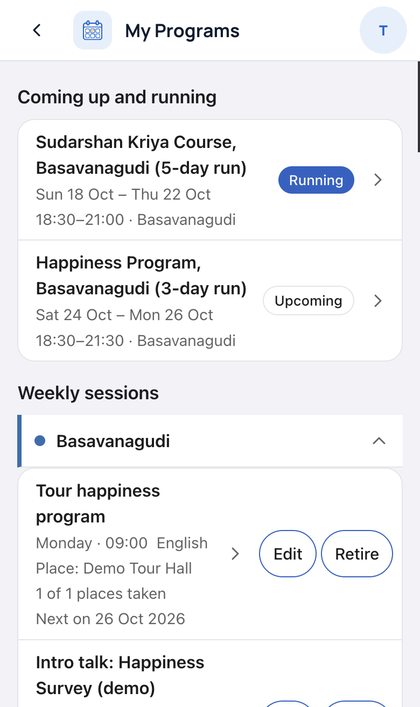
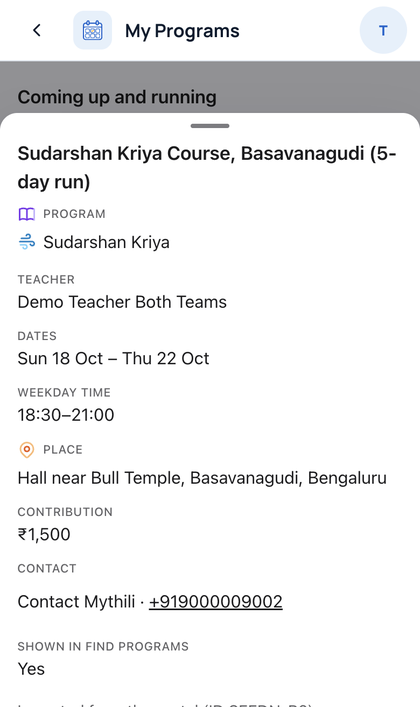
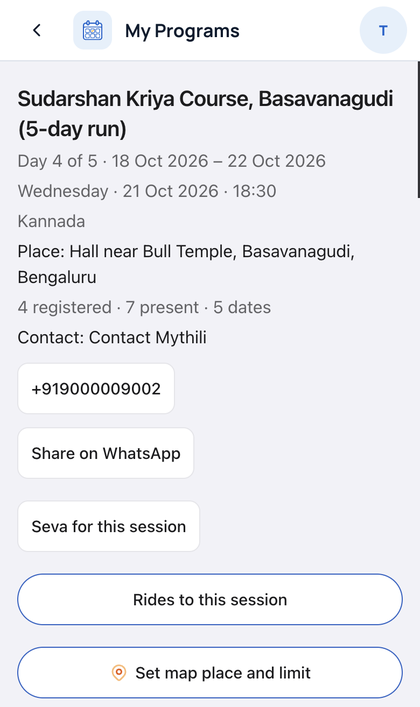
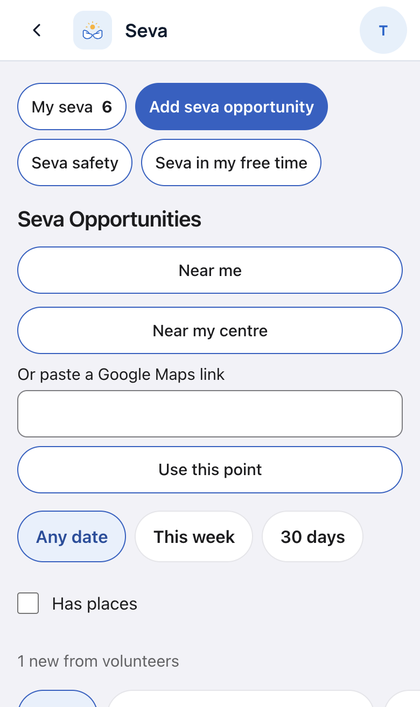
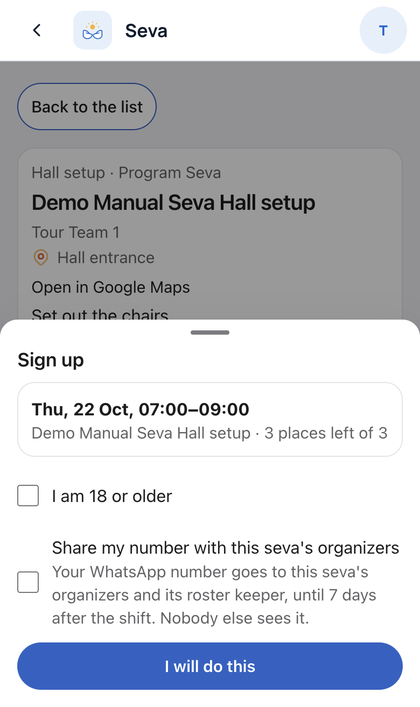
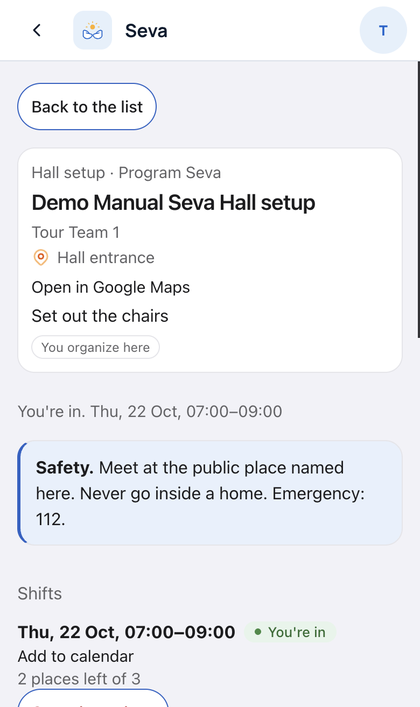
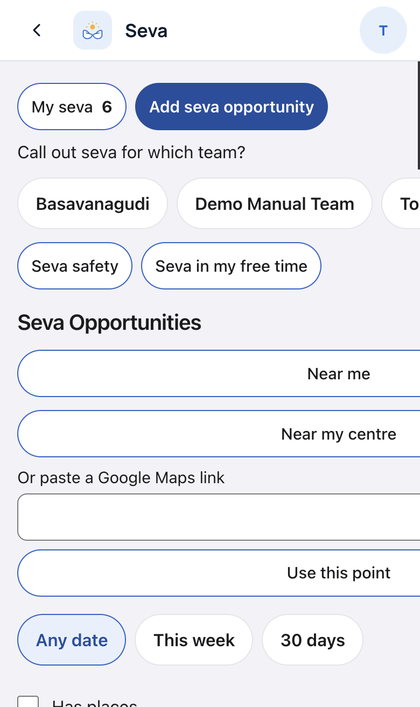
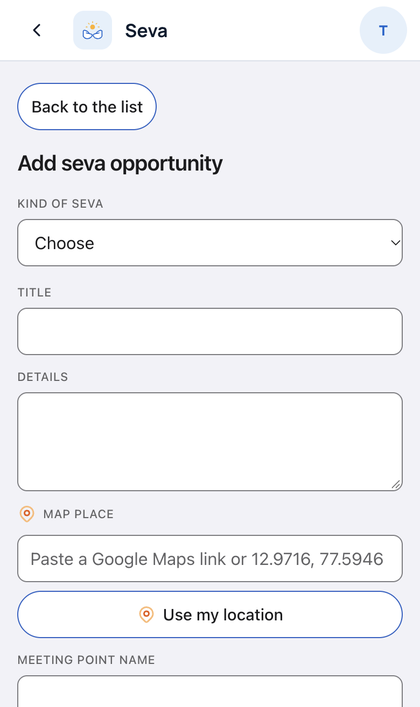
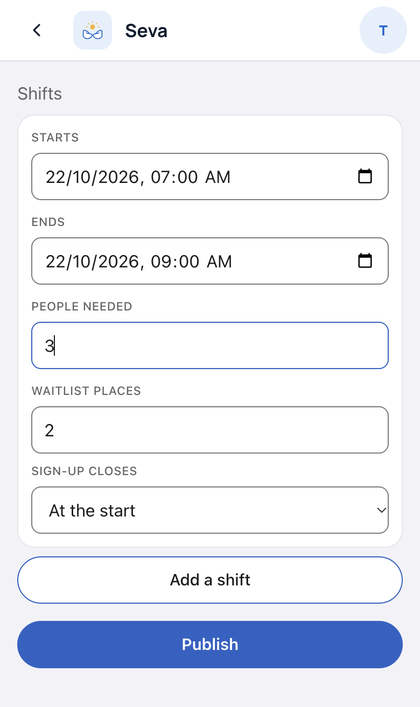
How to read this. Each block is one app. Steps are in order. Each picture shows the screen for that step. All names and numbers are invented demo data. The pictures show the app on its own. In the demo the Samanvay top bar replaces its header and bottom bar. In the pictures, Teams is called My Teams.
Goal: Add a person, call them, log what happened.
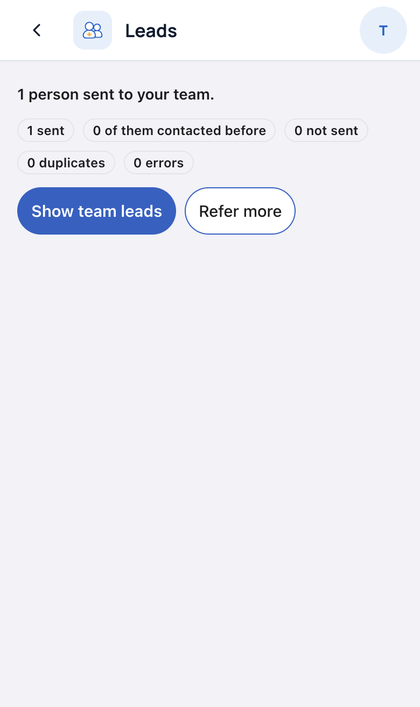
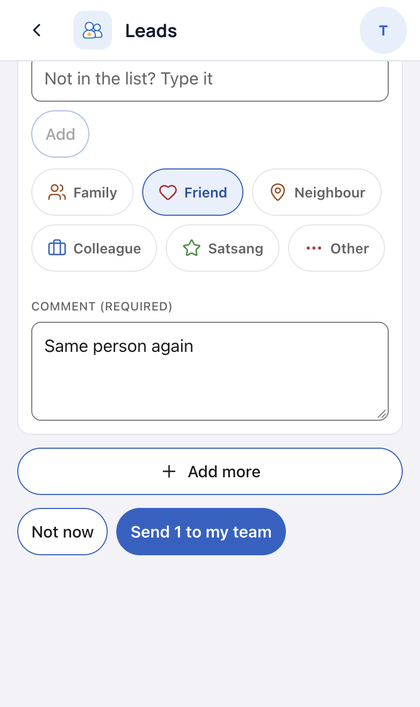
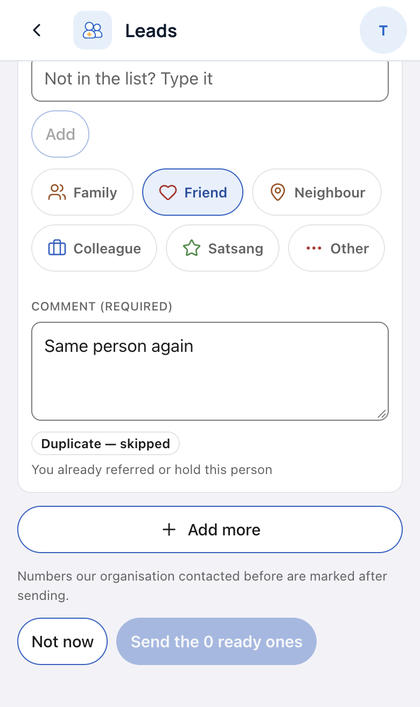
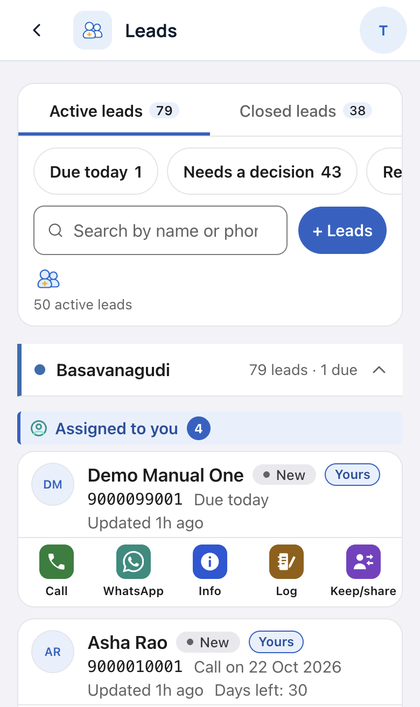
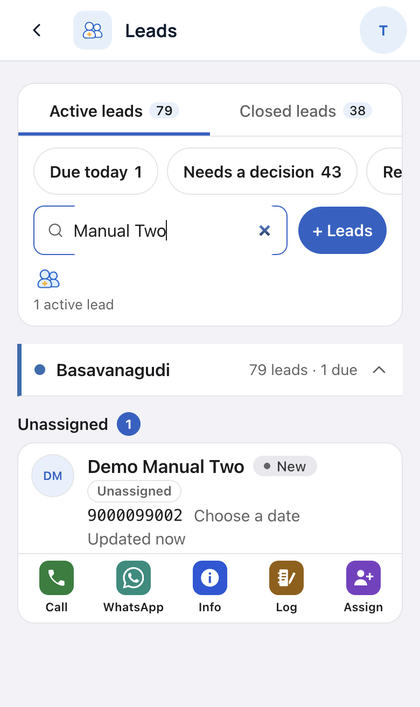
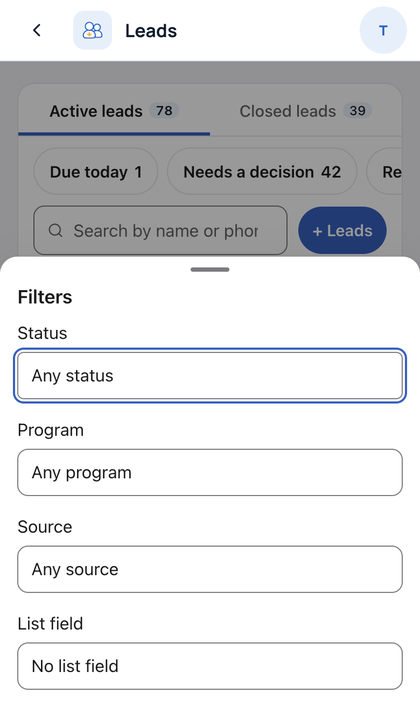
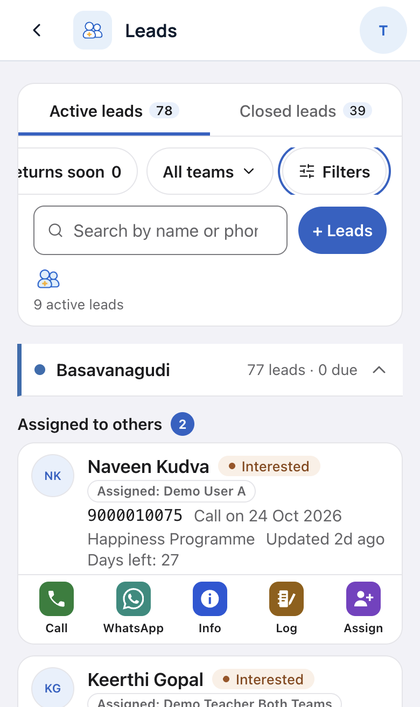
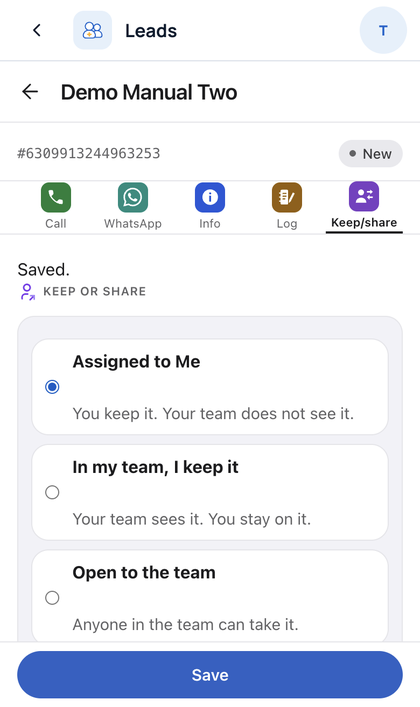
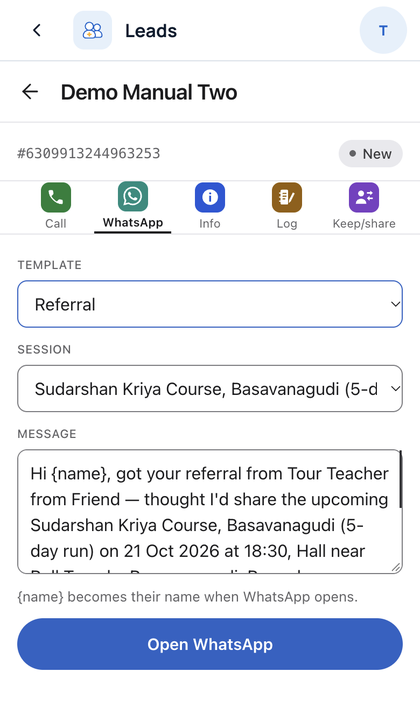
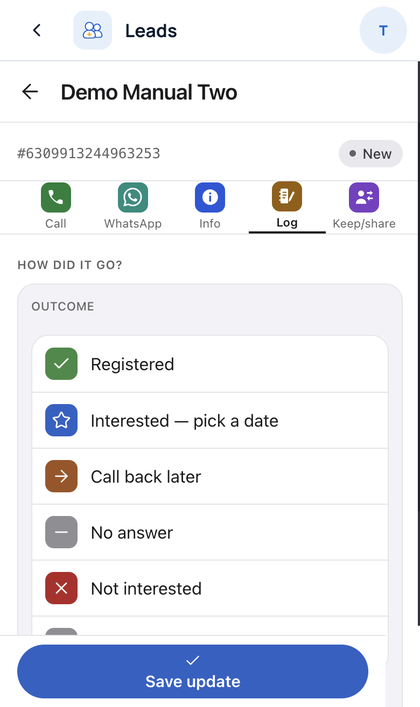
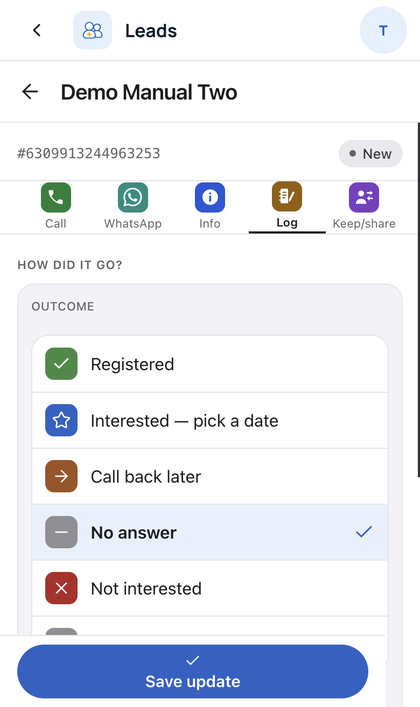
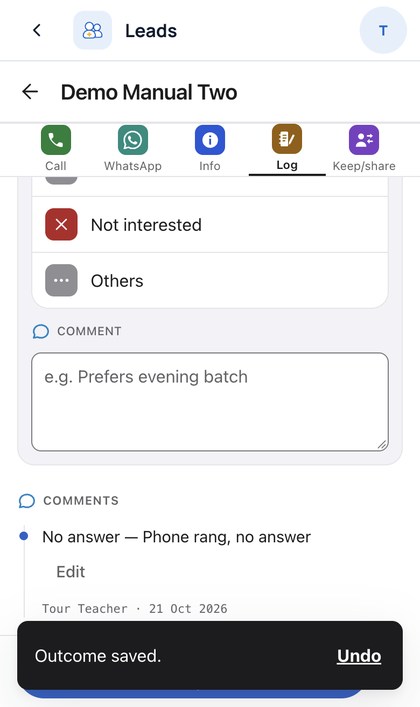
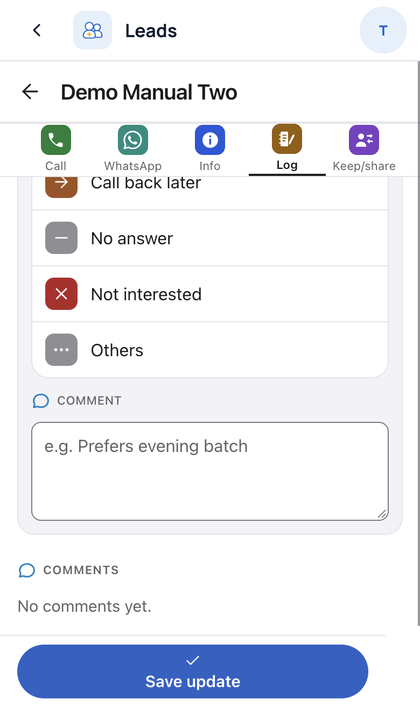
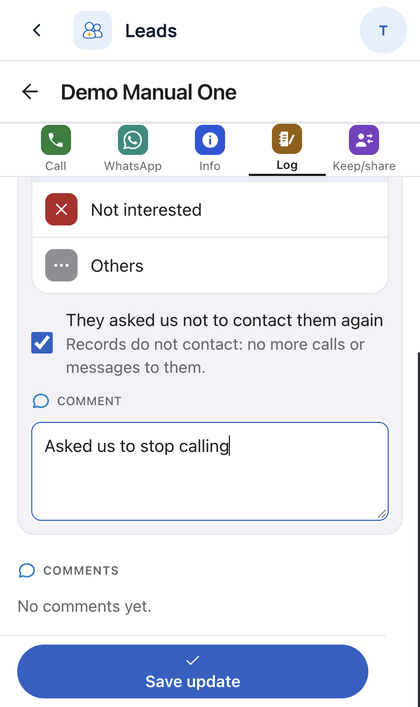
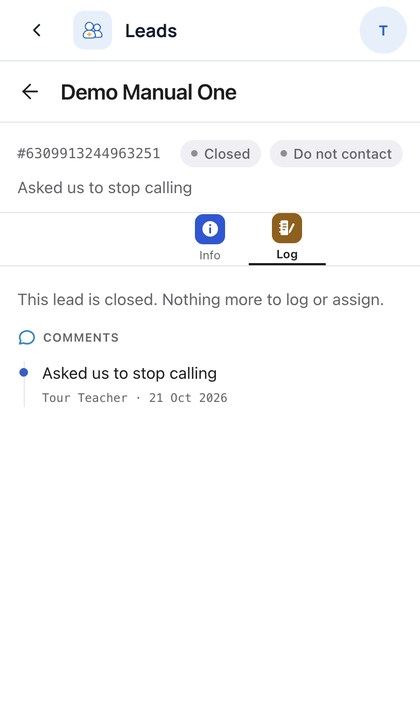
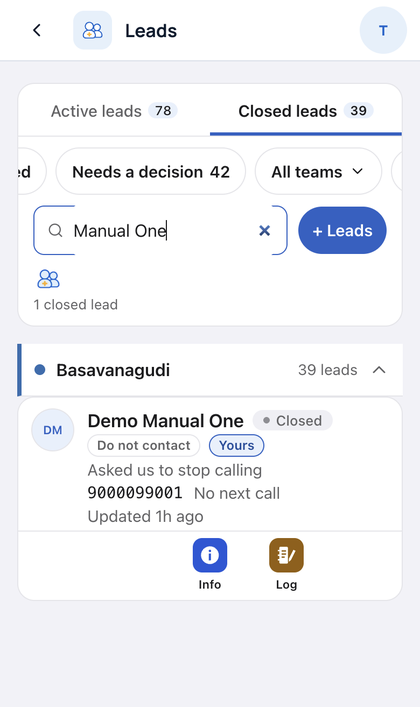
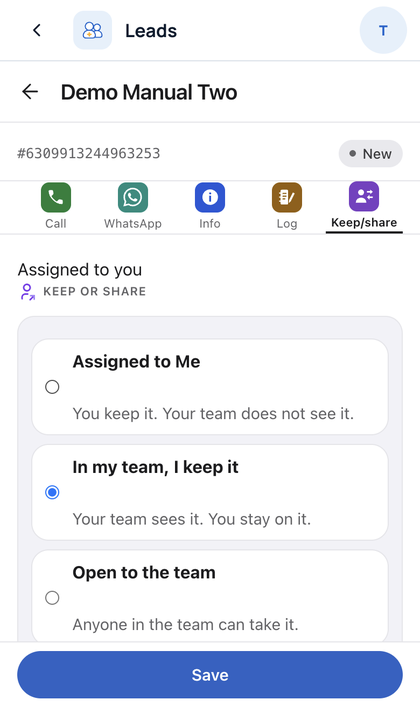
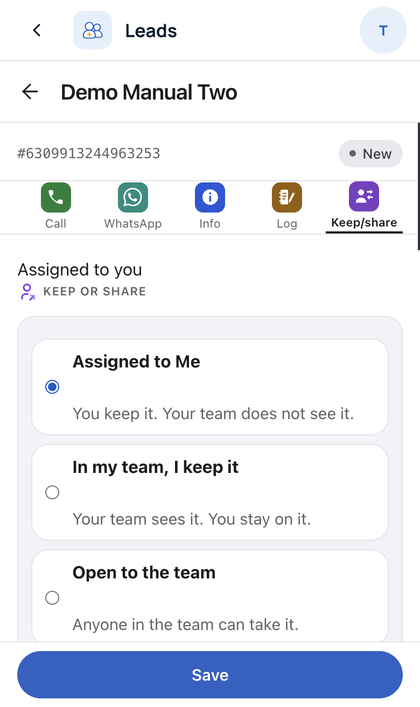
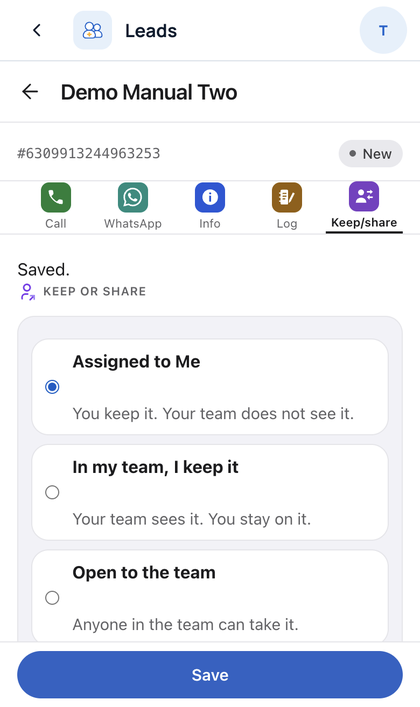
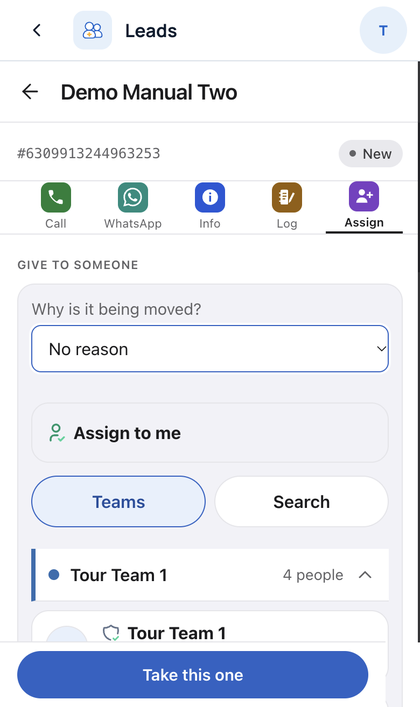
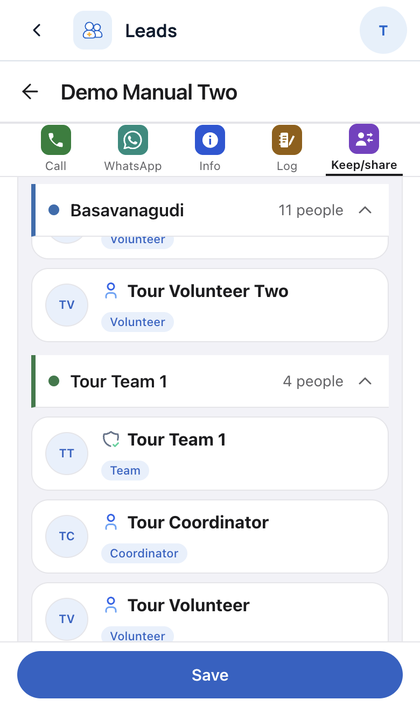
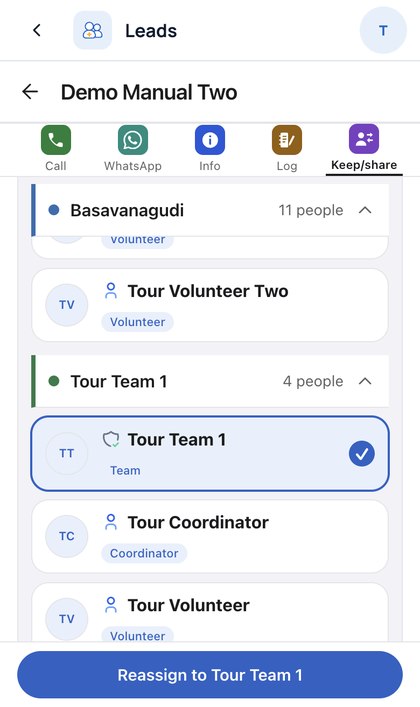
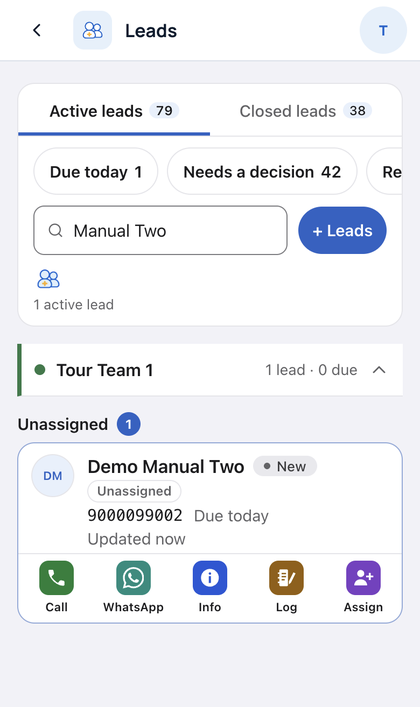
Goal: See your teams, add a team, add a person.
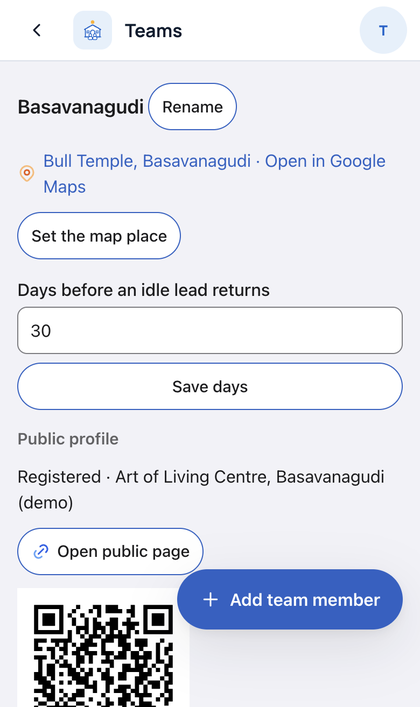
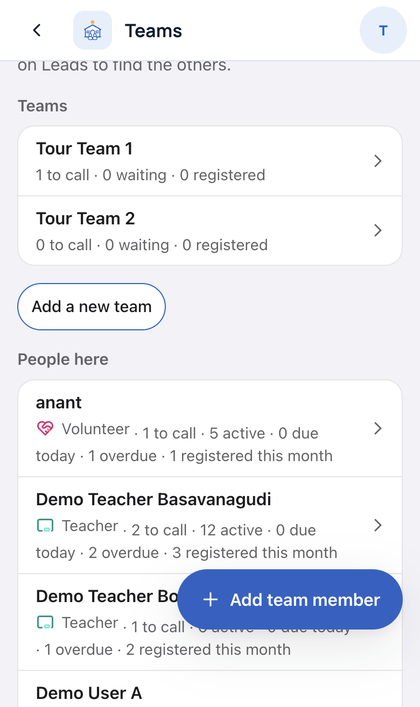
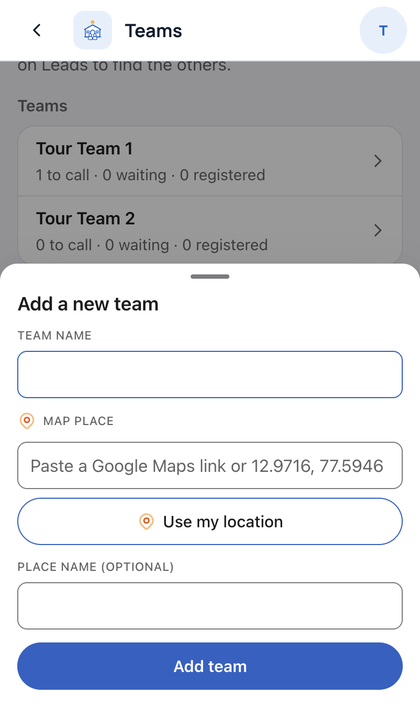
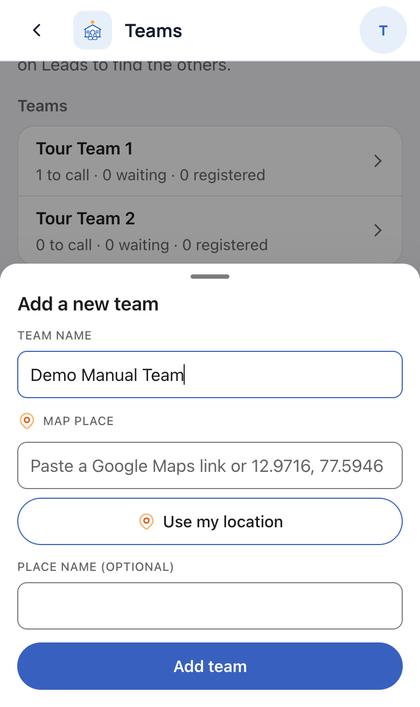
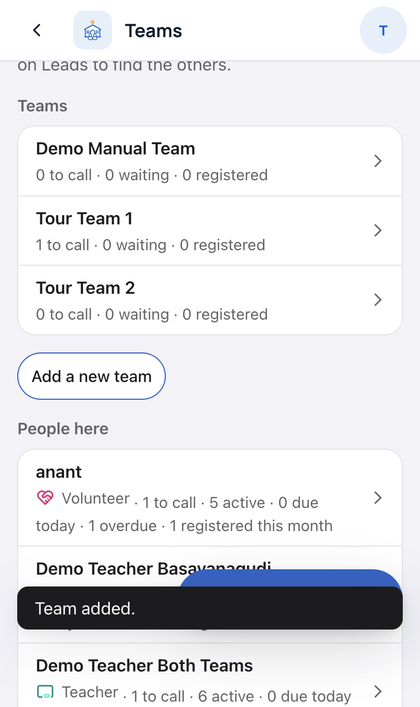
Goal: Post a notice at one centre.
Goal: Find a program by place, language or PIN code.
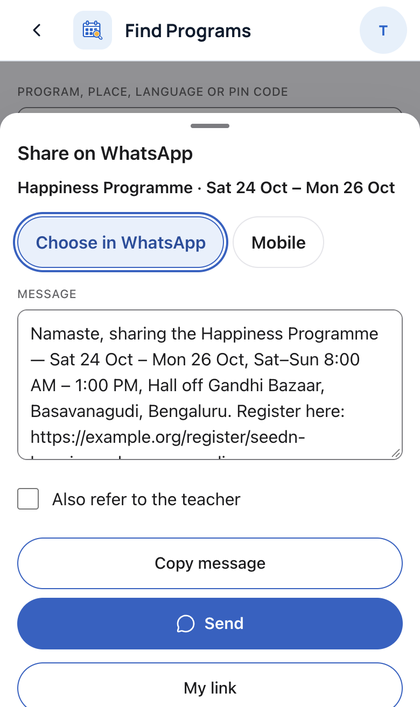
Goal: See your sessions and share them.
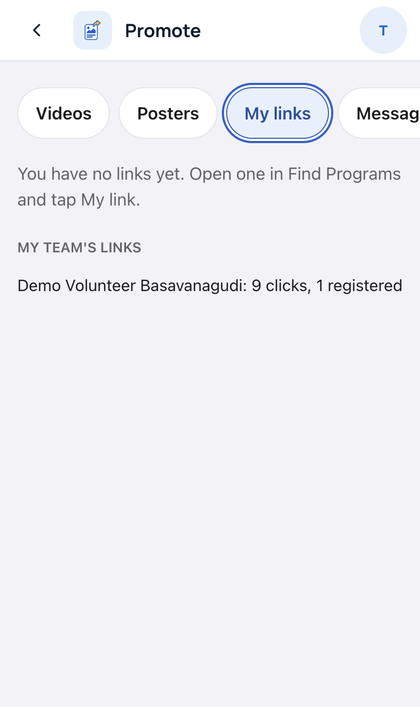
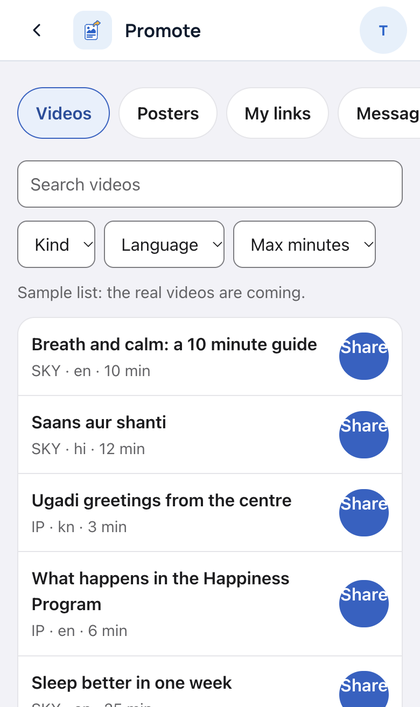
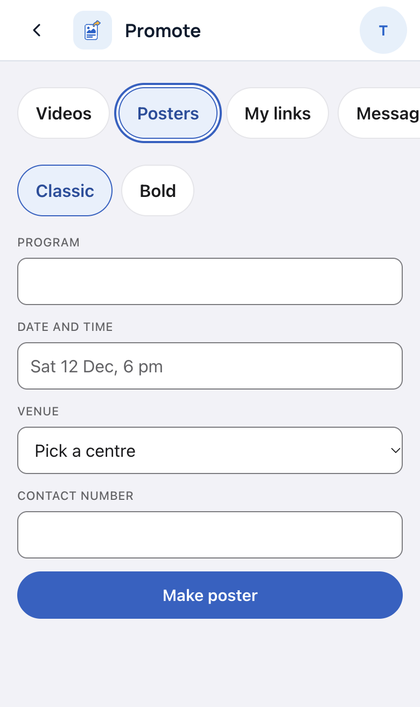
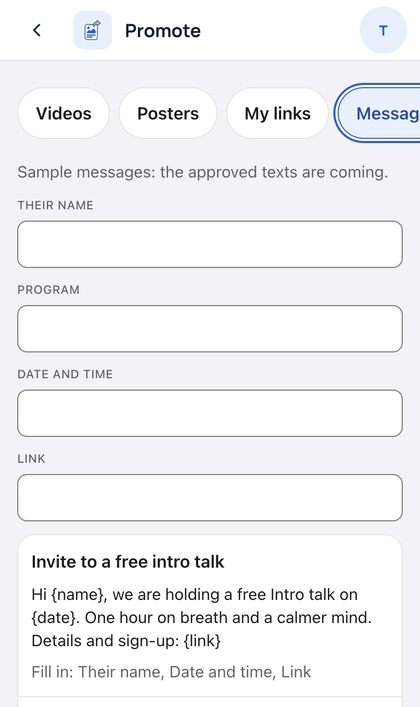
Goal: Find links and material to share.
Goal: Offer or ask for a ride to a session.
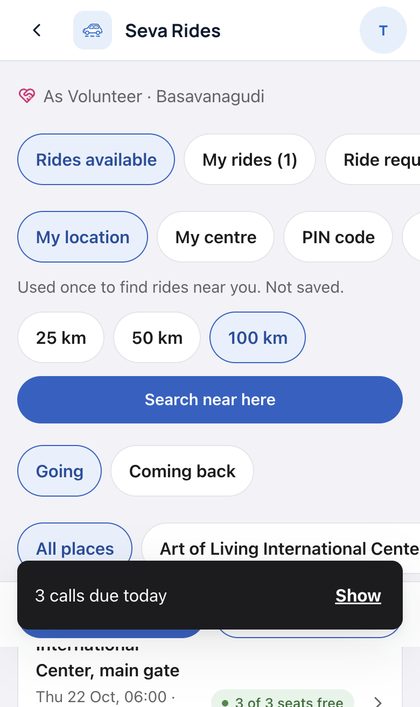
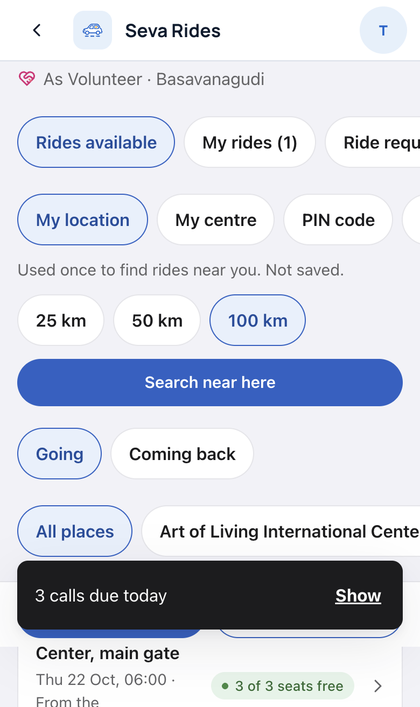
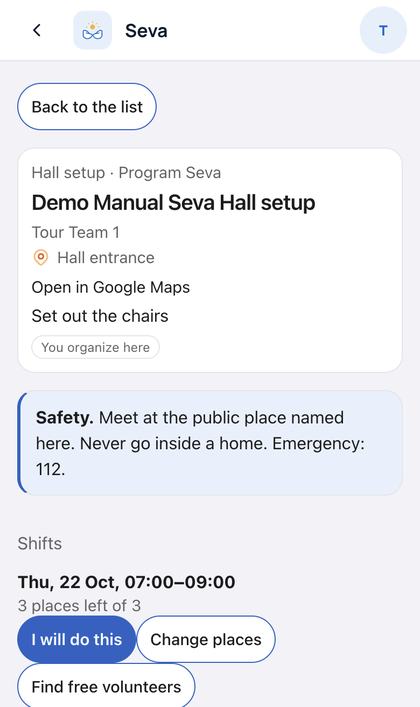
Goal: Find seva near you and sign up. Coordinators add seva.
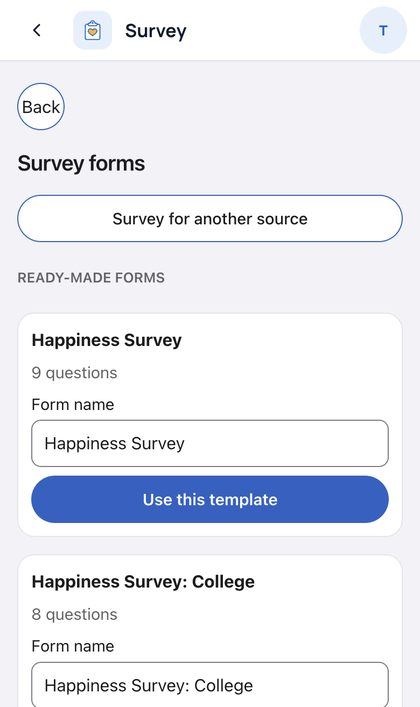
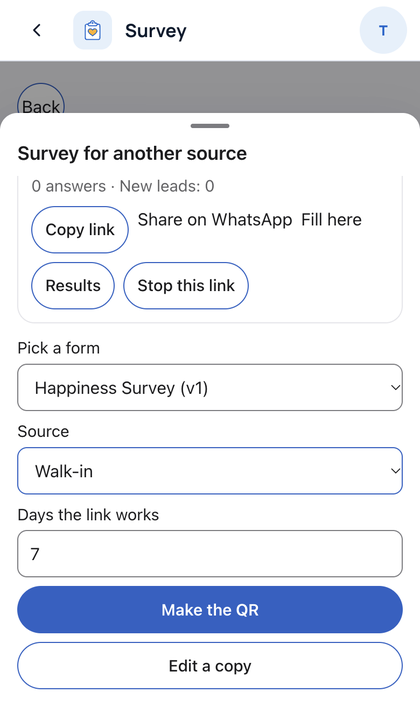
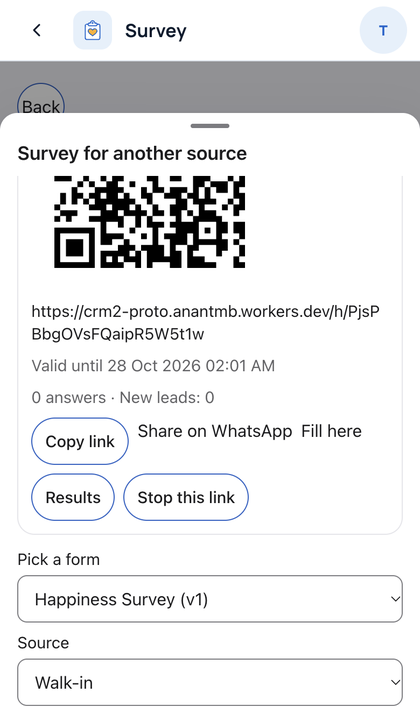
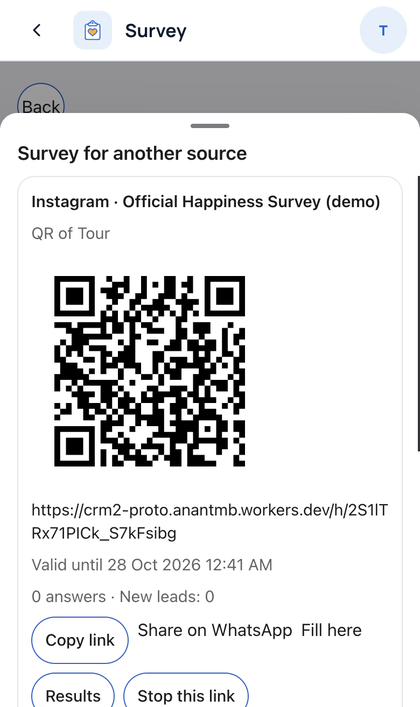
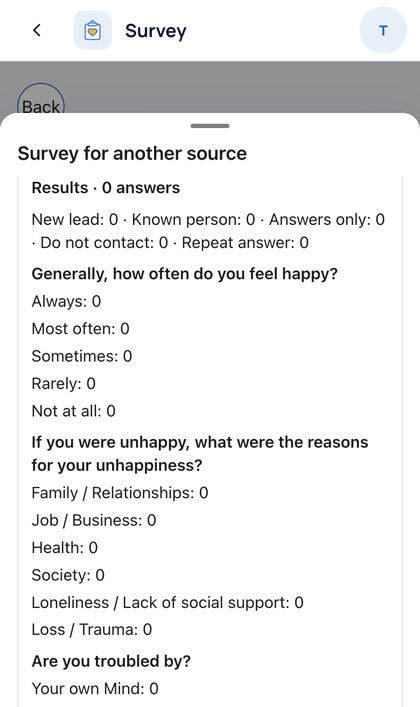
Goal: Make a link or QR code for a survey and read the answers.
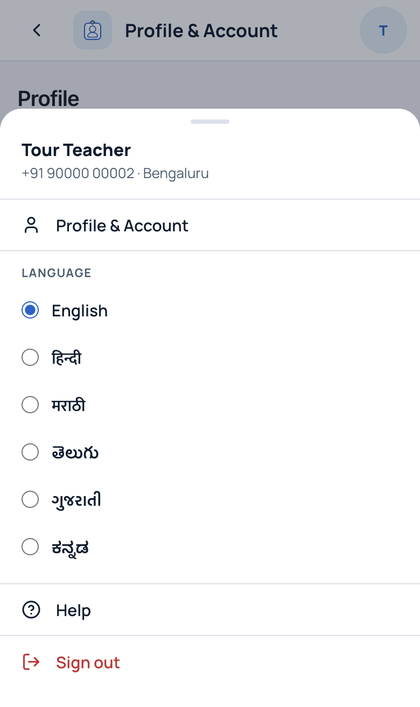
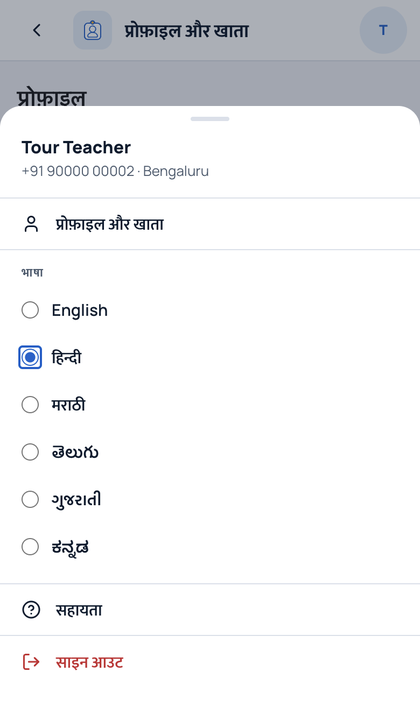
Goal: Change your language, see your profile, ask for a change.
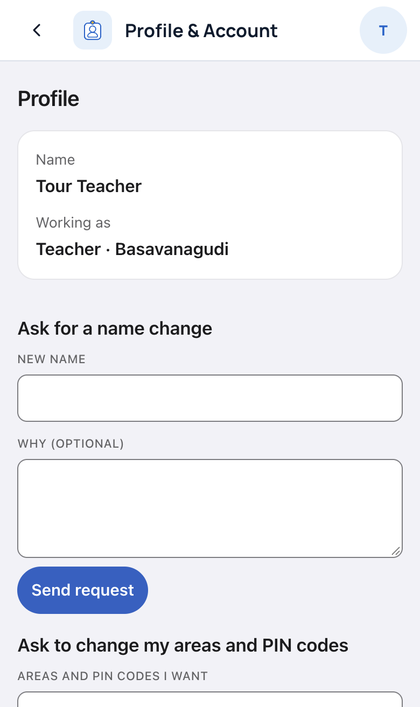
Not in this manual yet: Admin, Wisdom, Resources, Ask AI, VTP. Posters, messages and videos in Promote show sample data.
apps/volunteer2-fe) owns the sign-in screen, the top bar, the tile grid and the app frame. AOL checks the account.volunteer-be and Postgres, as before.src/routes/apps.mjs) and the same id to the shell list (packages/app-registry). A check keeps the two equal.GET /api/apps returns only the rows this person may open./x/<id>/. This "door" checks the session and the switch.The cut has 14 split branches plus integration. Arrows show the exact branch bases from table “real cut 6cef4b9a”; the shell changes above are separate.
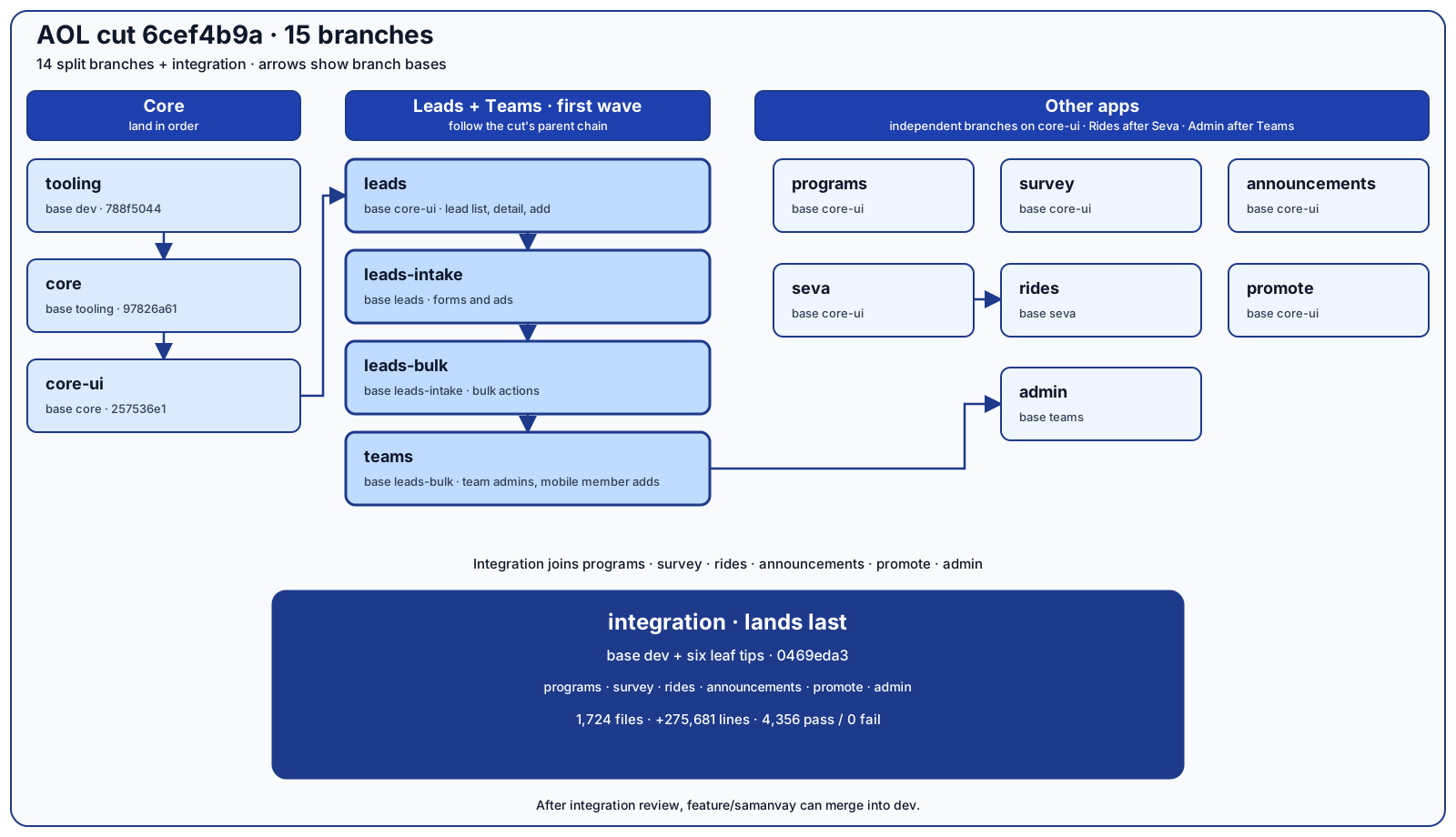
feature/samanvay can merge into dev.| Stays in the demo | What the team uses |
|---|---|
| Demo sign-in with AOL accounts (the stub code is for local tests only) | CRM2's own sign-in. The added apps accept the shell's handoff. |
| Our AOL sign-in screens inside the shell | None. A CRM2 person maps to an AOL user by verified phone. A handoff never creates an account. |
| Local stub of the CI SDK and the demo Worker config | The real CI SDK and the team's own config. |
| The link to our own demo database | The team links its own AOL-Connect Worker and D1 per environment. |
| The name "Samanvay" in team-owned apps | Only if the group agrees (branch chore/brand-samanvay). |